


Add a contact manually
Type in a contact when there is no card, badge or QR code to scan.
Met someone without a card? Add them by hand in Manual mode. You get the same context and preferences as a scanned card.
- Tap + and choose Manual.
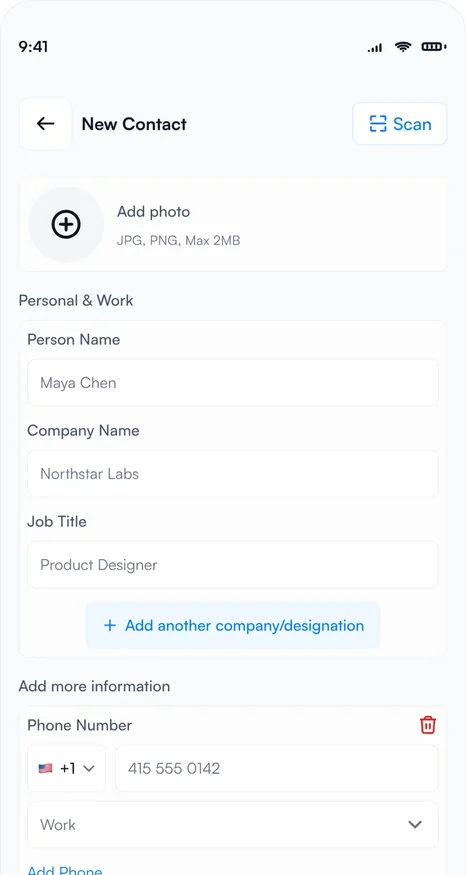
- Under Profile Photo, tap Add photo if you want one (JPG or PNG, up to 2 MB).
- Under Personal & Work, enter the person's name, company name and job title. Tap Add another company/designation for someone with more than one role.
- Under Add more information, add phone numbers with the country code, email addresses, an address or a website.
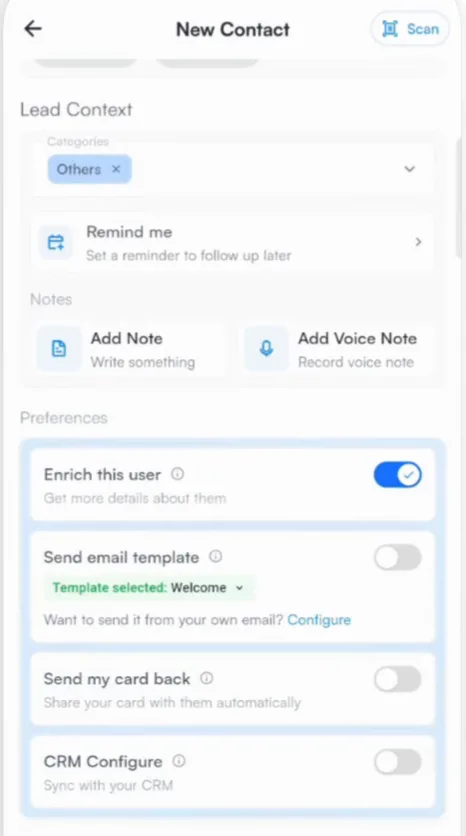
- Add context under Lead Context: categories, a reminder, notes or a voice note, and intent signals.
- Set your Preferences and tap Save Card.
Tip
Changed your mind? Tap Scan at the top right of New Contact to switch to the camera.
Related articles
Scan a business cardCapturing contactsScan an event badge or QR codeCapturing contactsOrganize contacts with categoriesOrganizing contacts
Still need help?
Email us with your account email and a short description of the issue. We reply within 1 to 2 business days.