


Find and manage contacts in Cards View
Search every contact your team captured, open a contact and act on it.
In this article
Cards View lists every contact your team has captured, with the newest first. Each row shows the person, their company, their contact details and when the card was added.
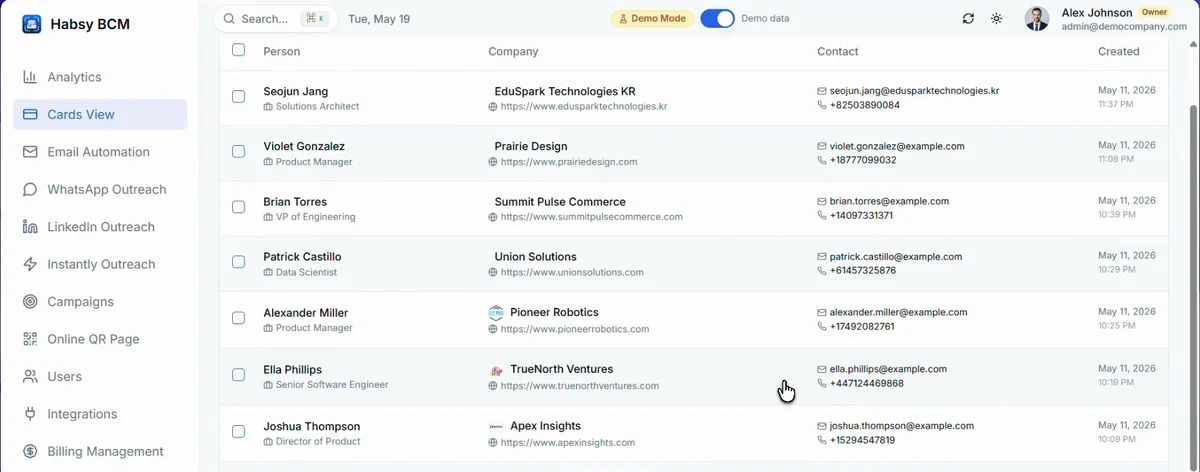
Find a contact
- Type in Search to find a name, company or email.
- Use Filters to narrow the list, and the sort menu to change the order.
- Use Columns to choose what the table shows.
- Use Add Card to add a contact by hand.
Open a contact
Click a contact to open it. At the top you see who captured the card, when and how. Below are the actions:
| Edit | Change the contact's details. |
|---|---|
| Assign / Set Reminder | Share the contact with a teammate. See Assign a contact. |
| View Card | See the contact's card. |
| Email and Call | Email or call the contact. |
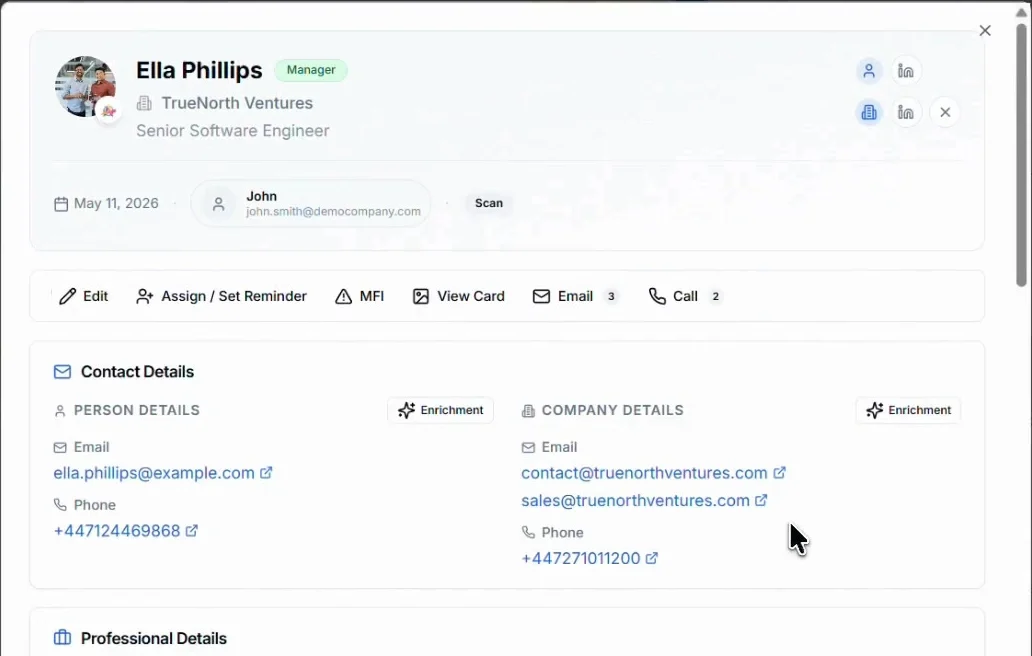
Scroll down to see:
- Contact Details for the person and the company. Click Enrichment to fill in more from public sources. See AI enrichment.
- Professional Details, such as job title, company and services.
- The rep's notes and the answers to your intent signals.
- Audio Transcriptions: voice notes, with a player, the transcript and Download.
- Location: where the card was scanned, with View on Map.
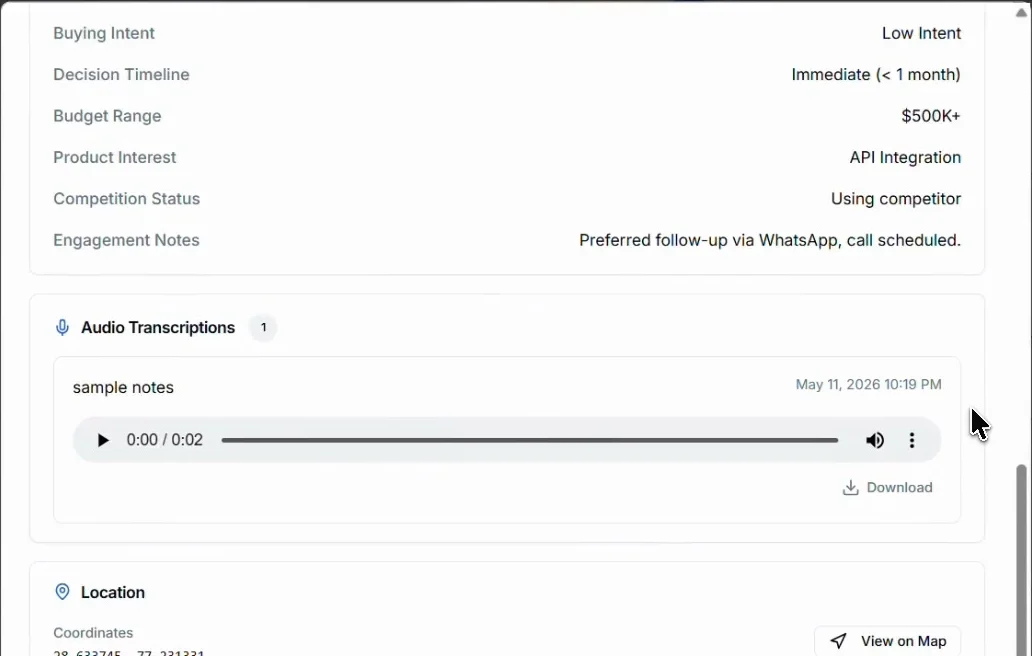
Related articles
Assign a contact to a teammateHabsy PlatformSend emails from Habsy PlatformHabsy PlatformLearn more about a contact with AI enrichmentOrganizing contacts
Still need help?
Email us with your account email and a short description of the issue. We reply within 1 to 2 business days.