


Scan a business card
Turn a paper card into a contact in seconds, and add context before you save.
In this article
Habsy reads the card with AI, sorts the details into the right fields and saves the card image with the contact. It reads cards in 200+ languages and translates them into English.
Scan a card
- Tap the blue + button. The scanner opens on Single.
- Place the card inside the frame, on a plain surface if you can, and tap the shutter button. The card must include contact details.
- The Review card screen opens. Check the card image, and tap the crop icon at the top right if you need to adjust it.
- Add any context you want now: a category, a reminder, a note or voice note, and your intent signals.
- Under Preferences, choose what happens after you save. See Card Preferences.
- Tap Submit. Tap Retake instead if the photo is blurred.
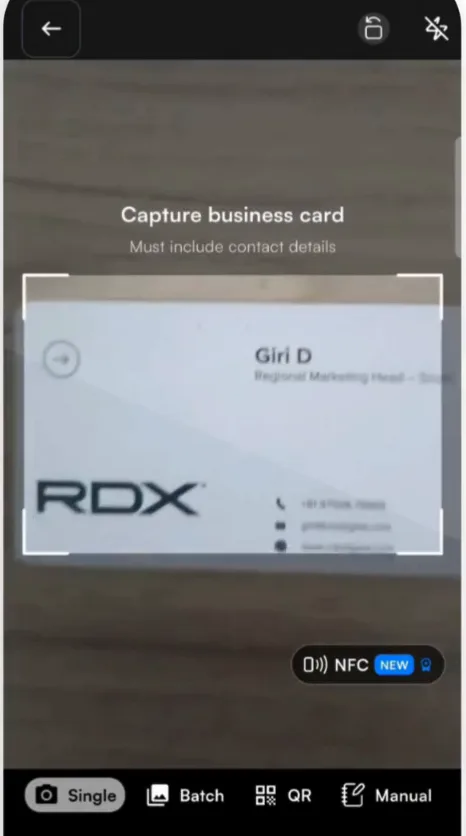
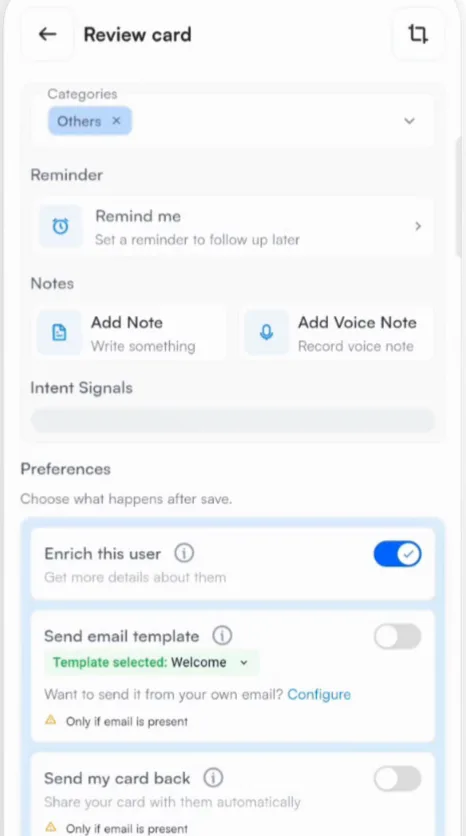
Habsy processes the card and adds it to Home. Open it to check the details. If a capture needs a correction, you will find it in Drafts.
Add the back of the card
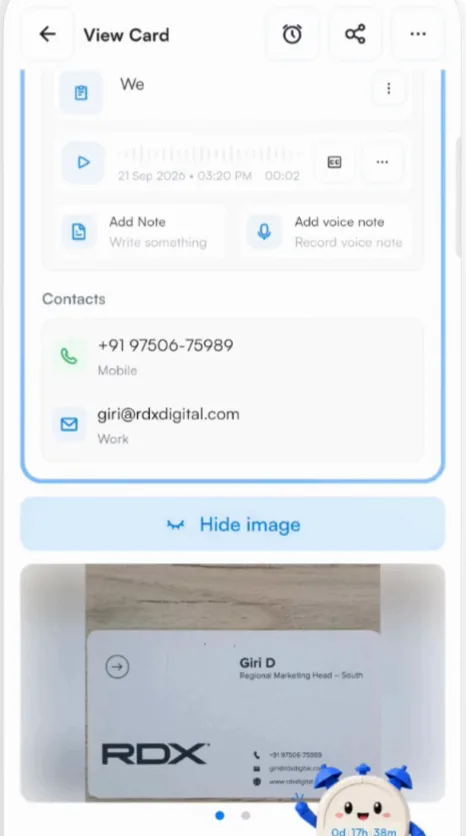
Open the contact, tap Show image and add the back of the card. Both sides stay with the contact.
Tips for a clean scan
- Use even light and avoid glare on glossy cards.
- Fill most of the frame with the card, and keep it flat.
- For cards with details on both sides, add the back after saving.
- No connection at the venue? Keep scanning. See Scan without internet.
Tip
Scanning many cards after a show? Batch scanning keeps the camera open between cards and applies the same context to all of them.
Related articles
Batch scan a stack of cardsCapturing contactsAutomate what happens after you save a contactFollowing upDrafts: track and fix your capturesCapturing contactsScan a card from a photoCapturing contacts
Still need help?
Email us with your account email and a short description of the issue. We reply within 1 to 2 business days.