


Import contacts into Habsy Platform
Upload a CSV or VCF file, map its fields and import the contacts.
Import contacts from another system in four steps: Upload, Map Fields, Review and Import.
- Go to Settings and open Data Import.
- To see the format Habsy expects, download a Sample CSV or Sample VCF.
- Drag your file into Upload File, or click to choose it. CSV and VCF files up to 20 MB work.
- Check how the columns in your file match Habsy's fields and change any that are wrong.
- Review the contacts, then import them.
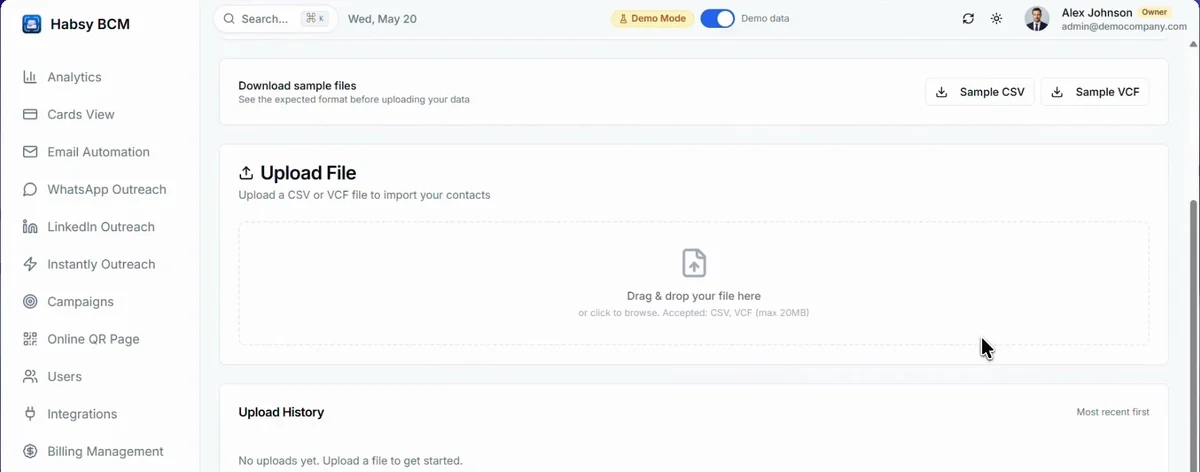
Your past imports are listed under Upload History, most recent first.
Related articles
Import contacts from a CSV file or another appCapturing contactsExport your team's contactsHabsy PlatformWhen you capture the same person twiceCapturing contacts
Still need help?
Email us with your account email and a short description of the issue. We reply within 1 to 2 business days.