


Export your contacts
Download contacts to Excel, CSV or VCF, by category and date, on every plan.
In this article
Your contacts are yours. Export them anytime, on every plan, at no cost.
Export
- On Home, tap the download icon at the top.
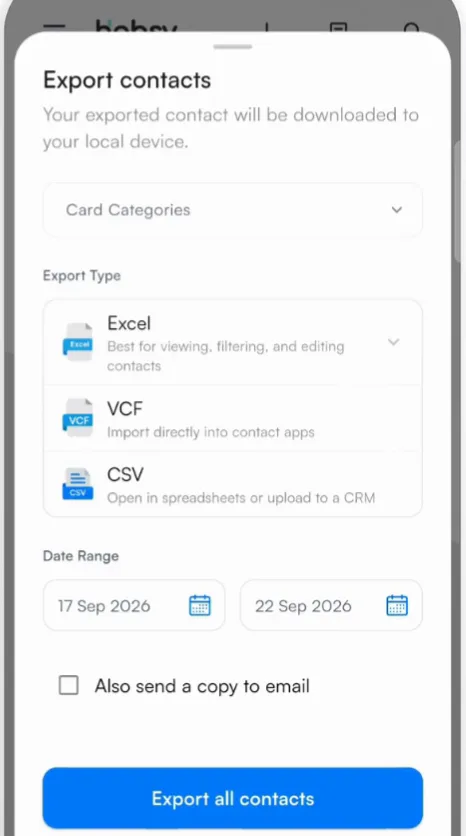
- Under Card Categories, choose the categories to export, or leave it to export everything.
- Choose the Export Type:
- Excel: best for viewing, filtering and editing contacts
- VCF: imports straight into your phone's contacts app
- CSV: opens in spreadsheets, or upload it to a CRM
- Set the Date Range to export only contacts captured in that period, such as the days of an event.
- Tick Also send a copy to email to get the file in your inbox.
- Tap Export all contacts. Once you pick a category, the button reads Export filtered contacts.
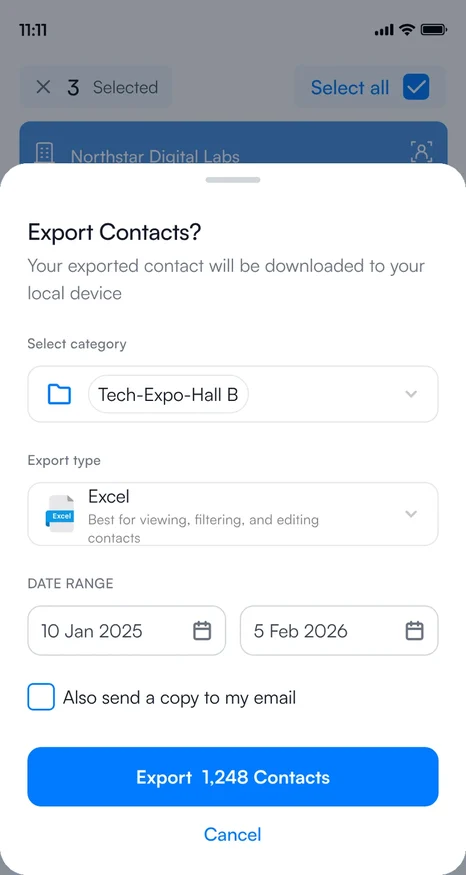
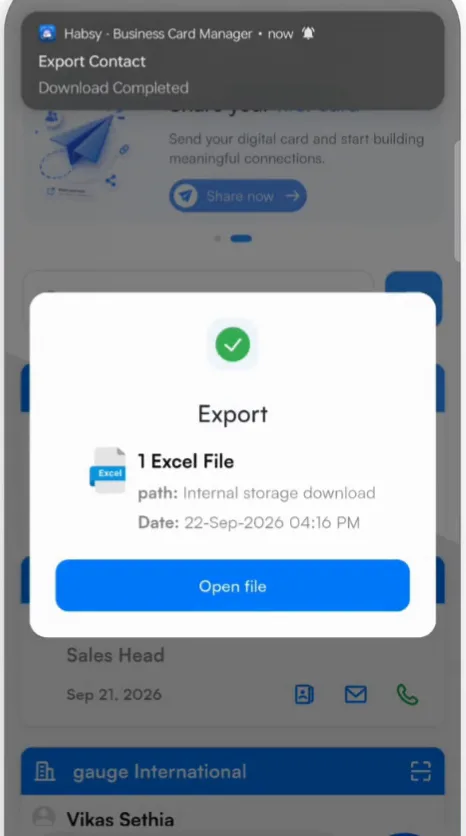
Habsy shows Processing request while it builds the file, and a notification tells you when the download starts and finishes. The file saves to your phone's Download folder. Tap Open file to view it.
Export only some contacts
Select contacts on Home and tap Export in the bar at the bottom.
What is in the file
Each contact is one row. Excel and CSV files have these columns:
| Person and company | Person Name, Company Names, Designations |
|---|---|
| Phone | Company Mobile Number 1 and 2, Person Mobile Number 1 |
| Email and web | Company Email 1, Person Email 1, Website 1 and 2 |
| Address | Address 1 |
| Organizing | Categories, Services, Note |
| Intent signals | One column for each of your intent signals, named after the signal, with the answer you picked. For example Status, Subscription Interested or Card count. |
| Voice notes | Audio Transcriptions |
| Capture details | Source (how the contact came in, such as Scan) and Created At (IST), the date and time you captured it |
When a contact has more phone numbers, emails, websites or addresses, the file adds numbered columns for them.
Related articles
Import contacts from a CSV file or another appCapturing contactsConnect your CRMExport and integrationsOrganize contacts with categoriesOrganizing contacts
Still need help?
Email us with your account email and a short description of the issue. We reply within 1 to 2 business days.