


Scan an event badge or QR code
Capture contacts from badge QR codes, digital business cards, LinkedIn and contact QR codes.
In this article
Use QR mode for any QR code that carries contact or business information:
- event badges with the attendee's details in the QR code
- contact QR codes (VCF)
- digital business cards from any provider
- LinkedIn profile QR codes
- website QR codes that carry contact information
Scan a QR code
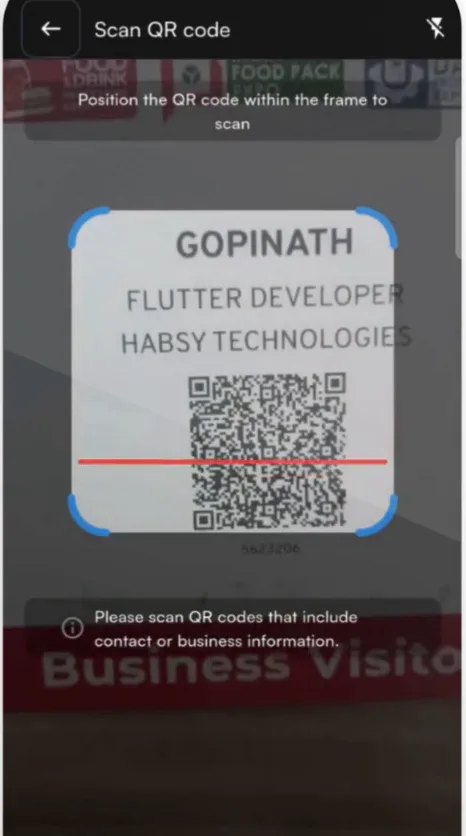
- Tap + and choose QR.
- Position the QR code inside the frame. Habsy reads it straight away.
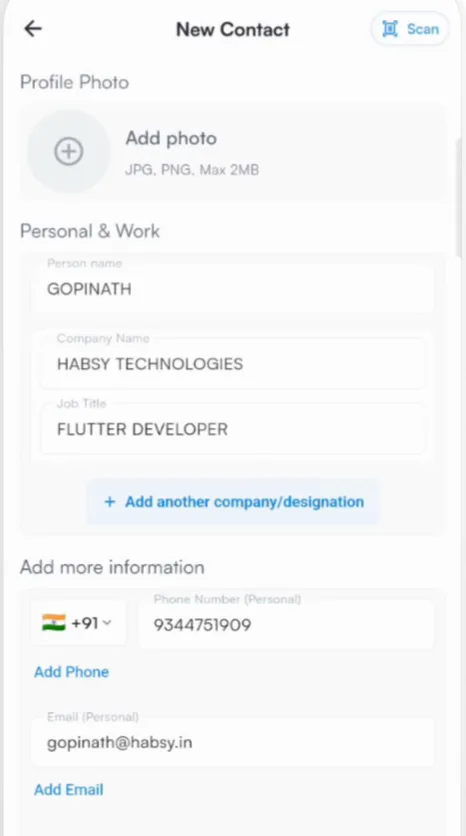
- A New Contact screen opens with the details filled in. Check them and add anything missing.
- Add context under Lead Context and set your Preferences, then tap Save Card.
When a badge has no contact details
Some event badges only hold a registration number. Habsy shows a message that the QR code has no contact or business information. In that case:
- scan the person's business card in Single mode,
- tap their NFC card or badge (see NFC), or
- type the details in with Manual mode.
Good to know
Habsy works on its own phone, at any event. It does not need the organizer's lead retrieval app or a developer kit to read badges that carry contact details.
Related articles
Capture and share with NFCCapturing contactsAdd a contact manuallyCapturing contactsScan a business cardCapturing contacts
Still need help?
Email us with your account email and a short description of the issue. We reply within 1 to 2 business days.