


Set follow-up reminders
Get reminded to call, send a proposal or check in, once or on a repeat.
Reminders make sure you follow up at the right time. You can set one while reviewing a new card or from any saved contact.
Set a reminder
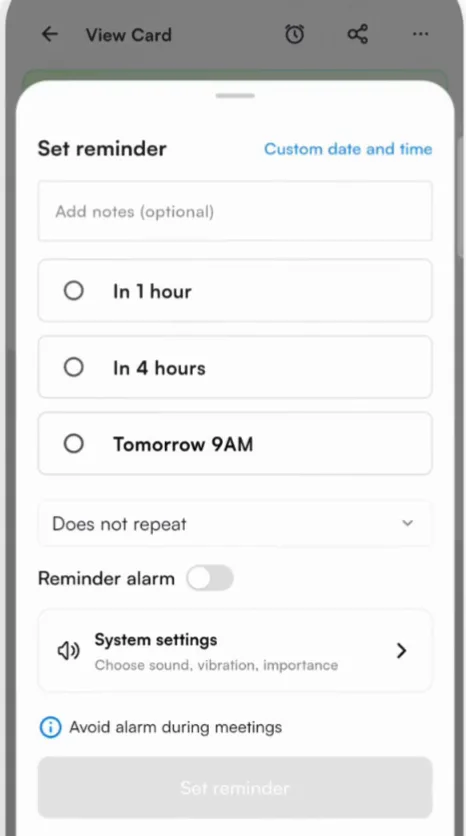
- On the review screen, tap Remind me. On a saved contact, tap the reminder icon at the top.
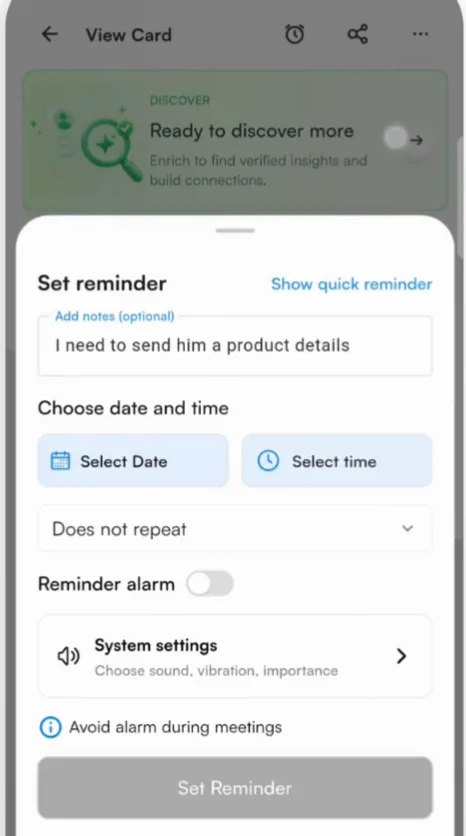
- Add a note so you know what to do, such as "Send the product details".
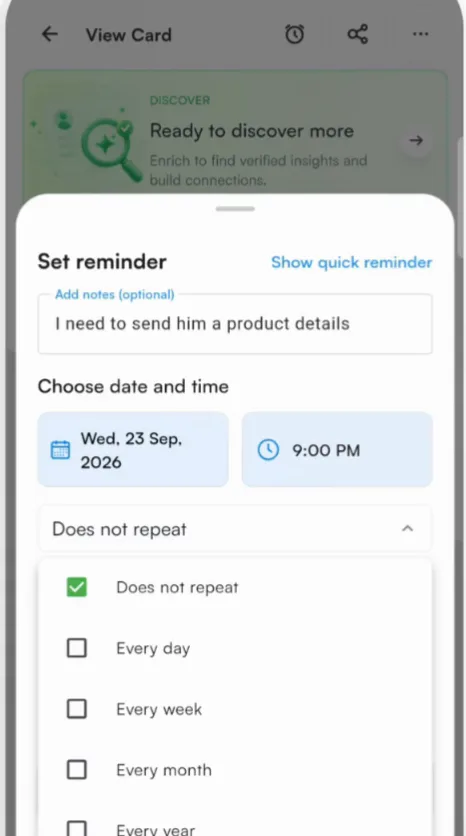
- Pick a quick option: In 1 hour, In 4 hours or Tomorrow 9AM. Or tap Custom date and time, then Select Date and Select time.
- To repeat it, change Does not repeat to every day, every week, every month or every year.
- Turn on Reminder alarm for a stronger alert. Use System settings to choose the sound, vibration and importance.
- Tap Set reminder. You will see Reminder created successfully.
Change or delete a reminder
Open the reminder again from the contact. Change the note, date, time or repeat and tap Update Reminder, or tap Delete.
See all your reminders
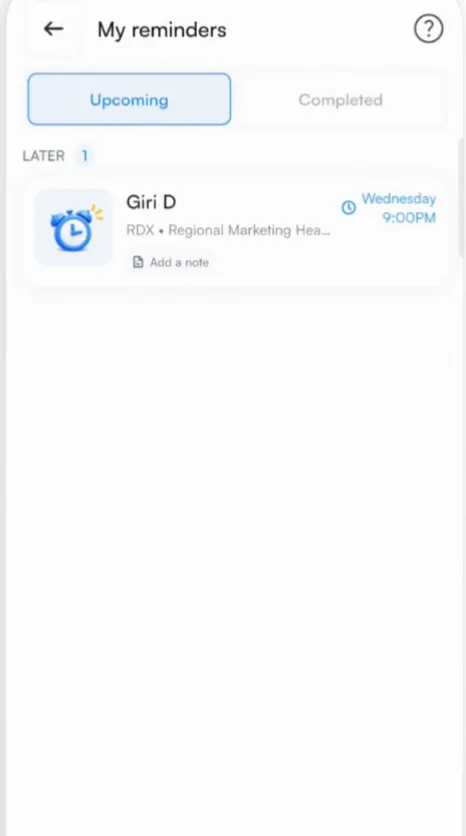
Go to Settings and tap My reminders. Upcoming lists what is due next and Completed lists what you have done.
Tip
Avoid alarm during meetings keeps a reminder alarm from going off while you are in a meeting.
Related articles
Add notes and voice notesOrganizing contactsView a contactOrganizing contactsFollow up with one contactFollowing up
Still need help?
Email us with your account email and a short description of the issue. We reply within 1 to 2 business days.