


Manage your team's digital cards on Online QR Page
Your Professional and Business QR, their analytics, your enquiry form, files, cover image and brand colour.
Online QR Page shows your Professional QR and your Business QR, the same digital cards you have in the app. See Create your digital cards.
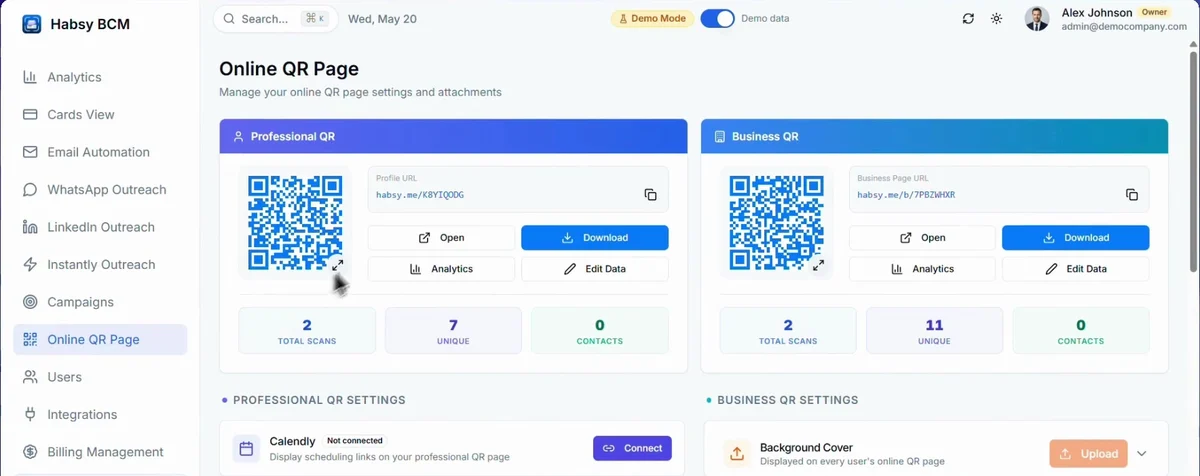
For each card you can copy its link, Open it, Download the QR code, see its Analytics and Edit Data. Below each card are its total scans, unique visitors and contacts saved.
Analytics
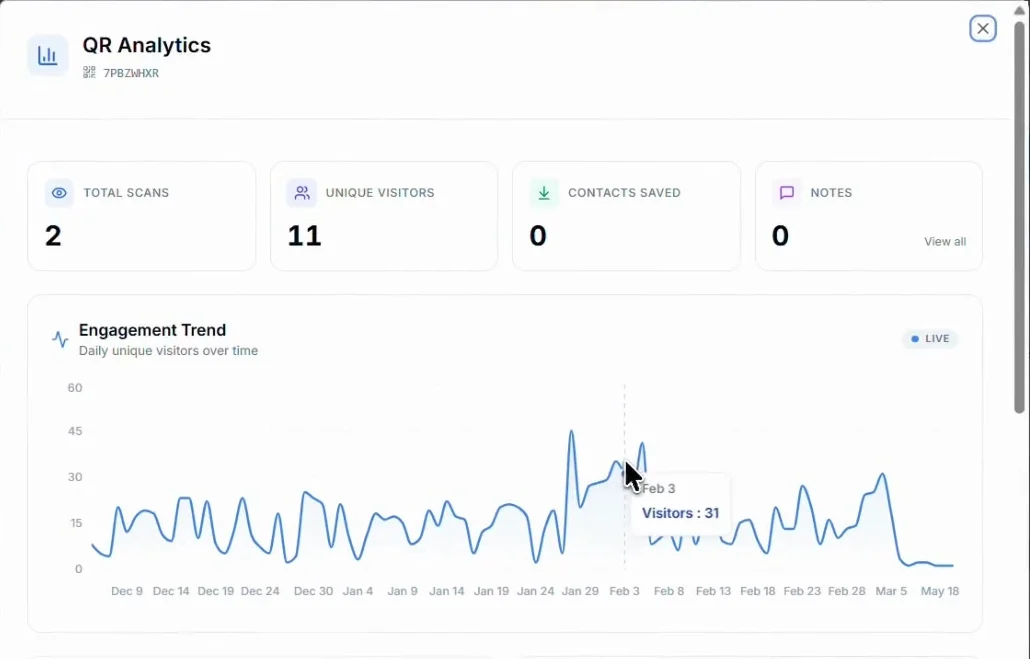
Click Analytics to see total scans, unique visitors, contacts saved and notes, visitors over time, which buttons people clicked and where they were.
Settings
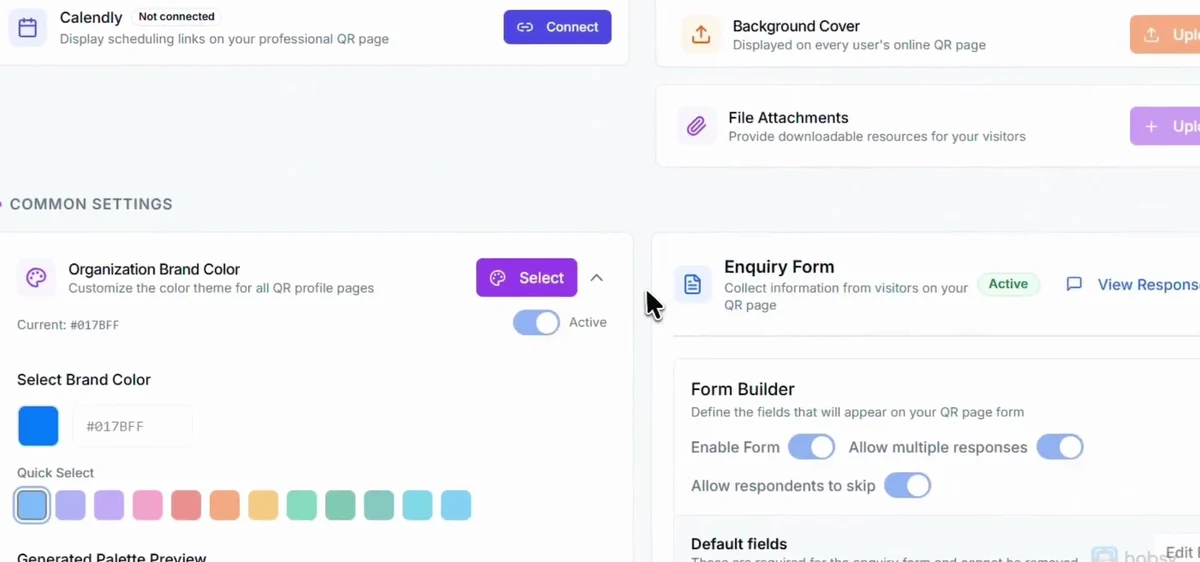
| Calendly | Shows your booking link on your Professional QR page. See Integrations. |
|---|---|
| Background Cover | A cover image shown on every user's online QR page. |
| File Attachments | Brochures and other files visitors can download. |
| Organization Brand Color | The colour for all your team's QR pages. Pick one of the quick colours or enter your own, and check the preview. |
| Enquiry Form | A form visitors fill in when they open your QR page. Turn it on, choose whether people can submit more than once or skip it, and choose its fields. The default fields are always included. |
See enquiry form responses
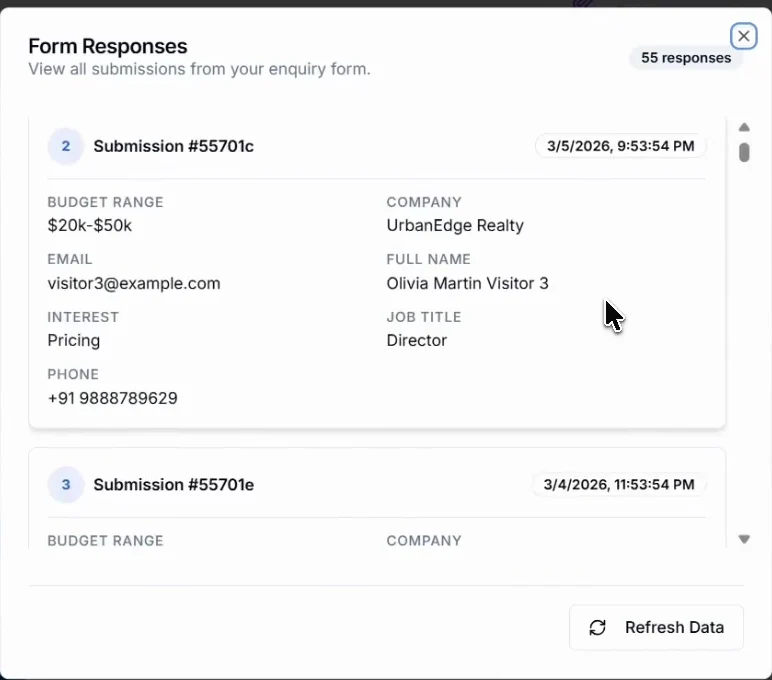
Next to Enquiry Form, click View Responses to see every submission, newest first. Click Refresh Data to load new ones.
Related articles
Still need help?
Email us with your account email and a short description of the issue. We reply within 1 to 2 business days.