


Create your digital cards
Set up your Professional digital card and your Business digital card under MyQR.
Every Habsy account includes two digital cards, both free, in the QR tab (called MyQR):
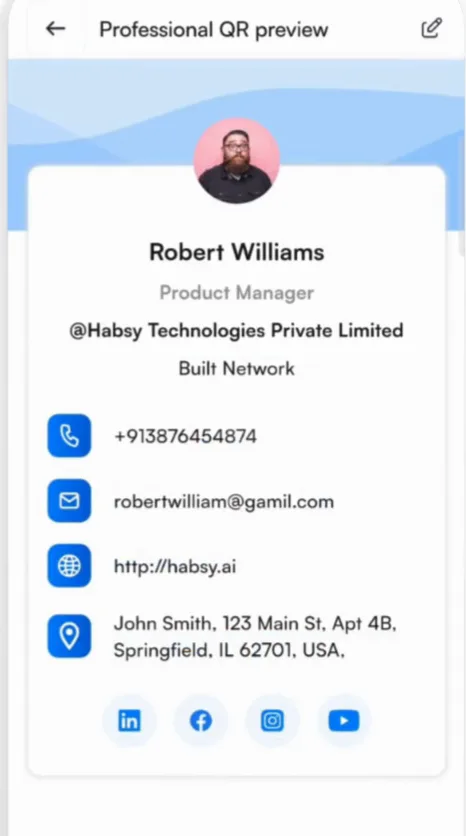
| Professional QR | Your personal card: your name, photo, job title, company, phone, email, website, address and social links. |
|---|---|
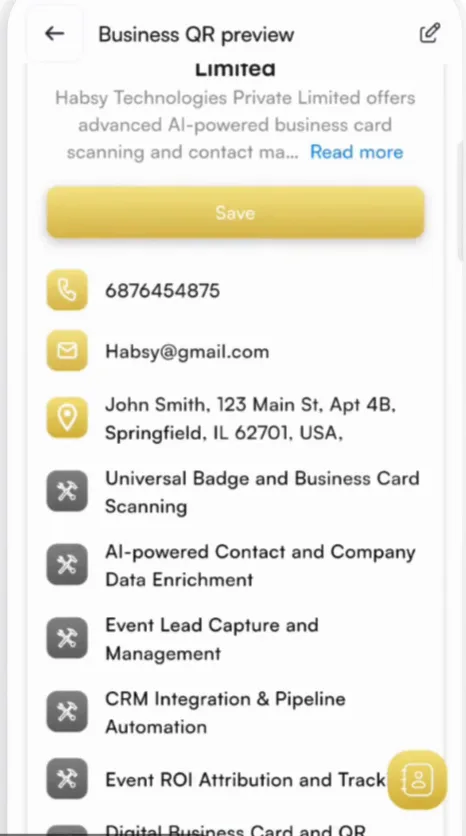
| Business QR | Your company's card: a description, your products and services, contact details, website and files such as brochures. |
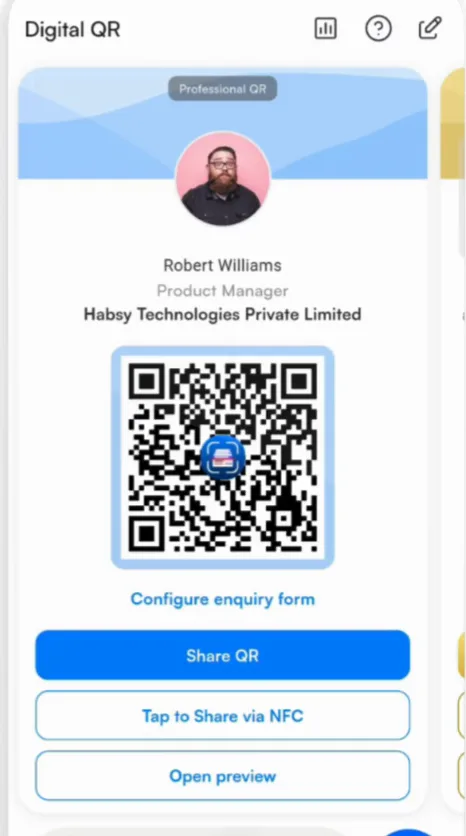
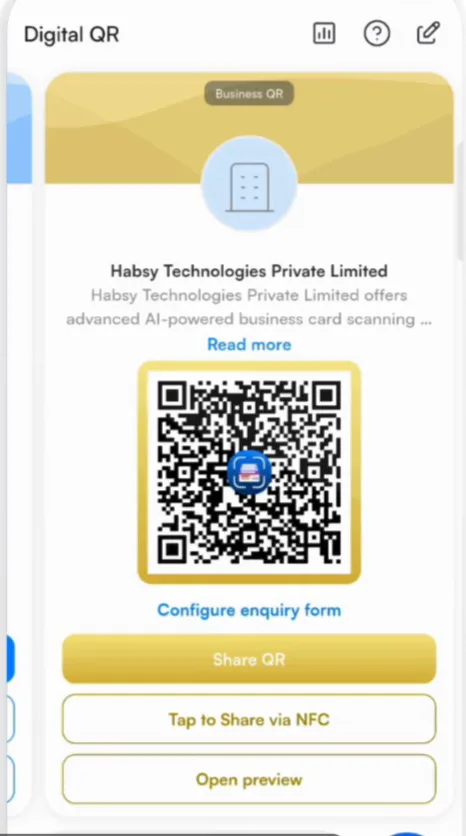
Swipe left or right on the QR tab to move between your Professional QR and your Business QR.
Create them
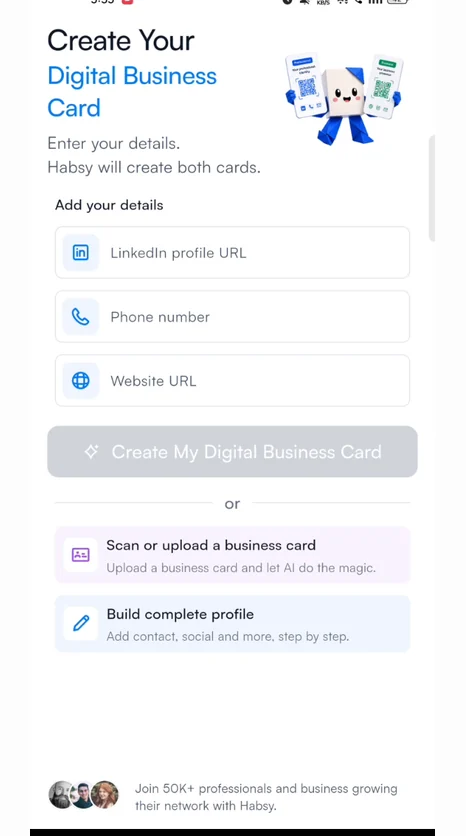
Habsy creates both cards for you when you sign up. On Create Your Digital Business Card, pick one of three ways:
| Add your details | Enter your LinkedIn profile URL, phone number and website URL, then tap Create My Digital Business Card. Habsy's AI fills in the rest from your LinkedIn profile and your website. |
|---|---|
| Scan or upload a business card | Take a photo of your own business card, or upload one, and let AI read it. |
| Build complete profile | Add your contact details, social links and more yourself, step by step. |
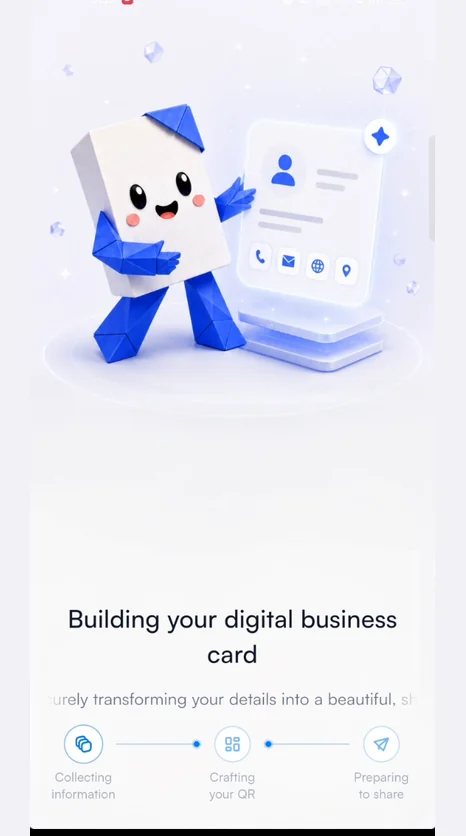
Habsy then shows Building your digital business card while it collects your information, crafts your QR codes and prepares them to share. You get a notification when your Professional QR and your Business QR are ready.
Review what Habsy filled in and change anything you want, as described below.
Edit a card
Tap the pencil at the top right of the QR tab. Changes show straight away for everyone who opens your card or link, so you never need to reprint or resend it.
Preview a card
Tap Open preview to see your card the way others see it.
Related articles
Still need help?
Email us with your account email and a short description of the issue. We reply within 1 to 2 business days.