


Create WhatsApp templates
Save reusable WhatsApp messages, write them with AI and track how they are delivered.
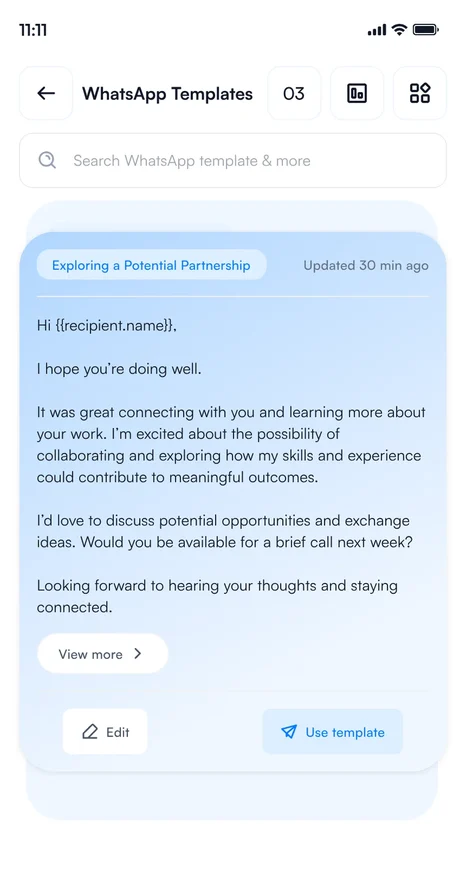
WhatsApp templates work like email templates, for the contacts you would rather message.
Create a template
- Go to Settings and tap WhatsApp Templates, then +.
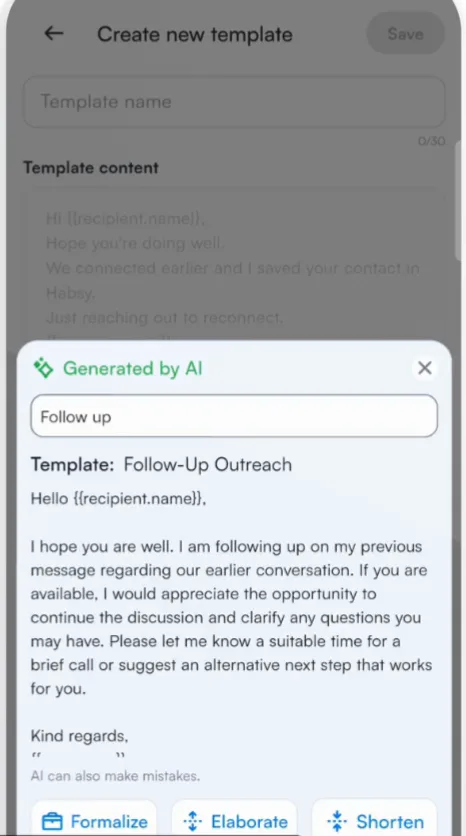
- Name the template and write the message, or swipe right on AI assist, describe the message and tap Generate.
- Refine the draft with Formalize, Elaborate or Shorten and tap Insert.
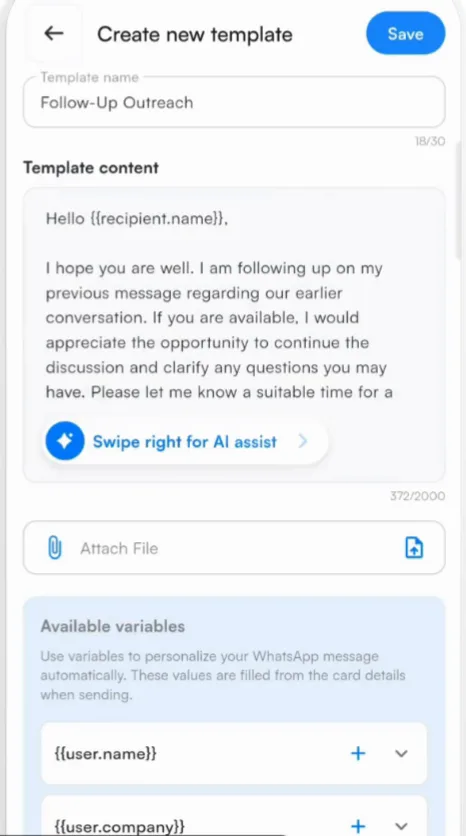
- Add variables such as
{{recipient.name}}and{{recipient.company}}, and attach a file if you need one. - Tap Save.
Connect WhatsApp, or send one message at a time
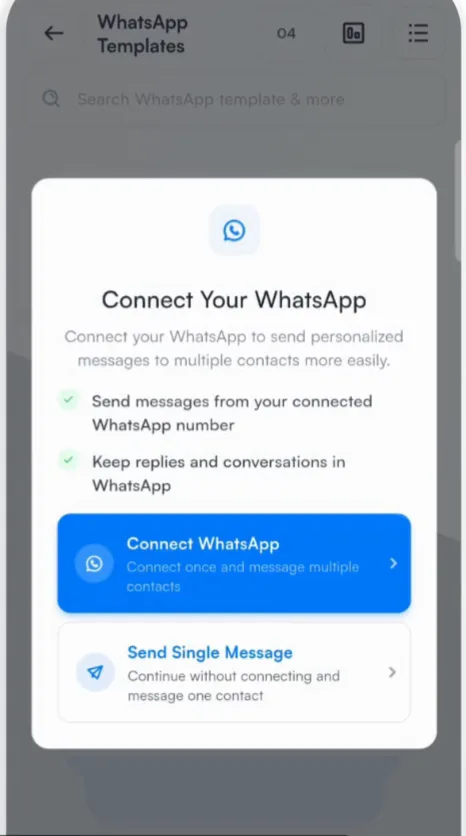
Habsy offers two ways to send:
- Connect WhatsApp: connect your WhatsApp Business account once, then message several contacts at once and see your WhatsApp analytics. Replies and conversations stay in WhatsApp. This needs WhatsApp Business API access. See Connect WhatsApp.
- Send Single Message: continue without connecting. The message opens in WhatsApp on your phone, and you tap send.
WhatsApp Analytics
With a connected account, the analytics icon on WhatsApp Templates shows messages that are processing, sent, delivered, read and failed.
Related articles
Create email templatesFollowing upConnect WhatsAppExport and integrationsFollow up with one contactFollowing up
Still need help?
Email us with your account email and a short description of the issue. We reply within 1 to 2 business days.