


Install Habsy and sign in
Download the app, create your account and find your way around in a few minutes.
Habsy is a mobile app for iPhone and Android. The free plan is free forever, with no credit card and no limit on how many cards you scan.
Install the app
- Open the App Store on iPhone or Google Play on Android.
- Search for Habsy Business Card Manager, the app's name in both stores, and install it.
- Open Habsy and allow notifications when asked, so your follow-up reminders can reach you.
Create your account
- On Welcome to Habsy, tap Create Account and choose the account to sign up with.
- Already have an account? Tap Google, Microsoft or the email icon under Already have an account? On iPhone you can also sign in with Apple.
If you use Habsy on more than one phone, or connect Habsy to other tools later, use the same sign-in method every time so all your contacts stay in one account.

Set up your digital cards
Right after you sign up, Habsy builds your two digital cards, the Professional QR and the Business QR, from a few details or a photo of your business card. See Create your digital cards.
What to do first
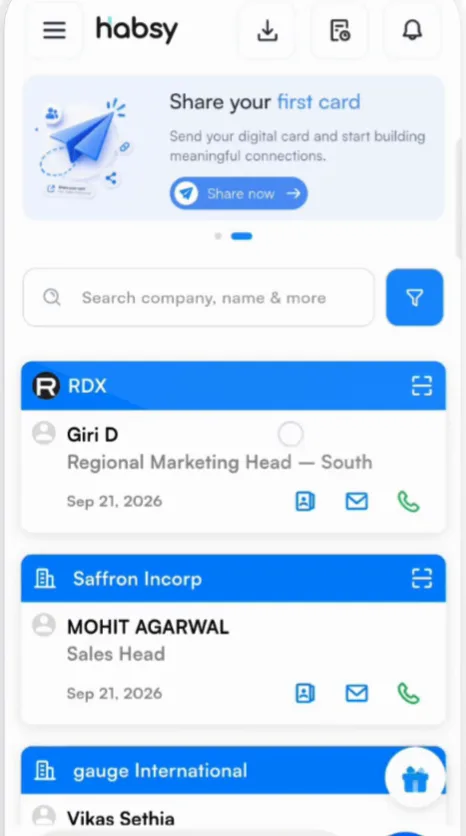
- Check your digital cards. Open the QR tab in the bottom bar to see, preview and edit your Professional and Business digital cards.
- Scan your first business card. Tap the blue + button and point your camera at a card. See Scan a business card.
- Connect your email if you want to send follow-ups from your own address. See Connect your email account.
Going to an event soon? Set up your digital card, a category for the event and your follow-up template the day before, so you only have to scan at the show.
Related articles
Still need help?
Email us with your account email and a short description of the issue. We reply within 1 to 2 business days.