


Import contacts from a CSV file or another app
Bring contacts from a spreadsheet or another business card scanner into Habsy.
In this article
Switching from another business card scanner, or keeping contacts in a spreadsheet? Import them as a CSV file so your past contacts and new ones live in one list.
Prepare your file
- Export your contacts from the other app as a CSV or VCF file, or save your spreadsheet as CSV.
- Make sure the first row of a CSV has column names, such as name, company, job title, email and phone.
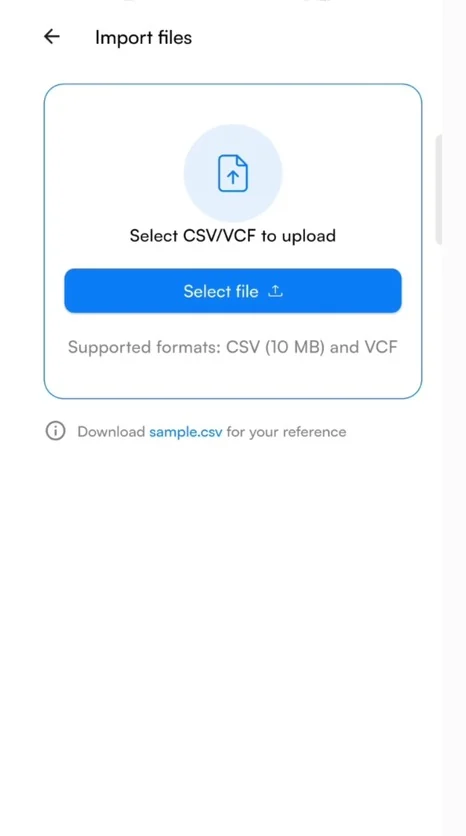
- CSV files can be up to 10 MB. Not sure about the layout? Download sample.csv from the import screen and copy its columns.
Import
- Go to Settings, tap Manage Account and choose Upload Contact.
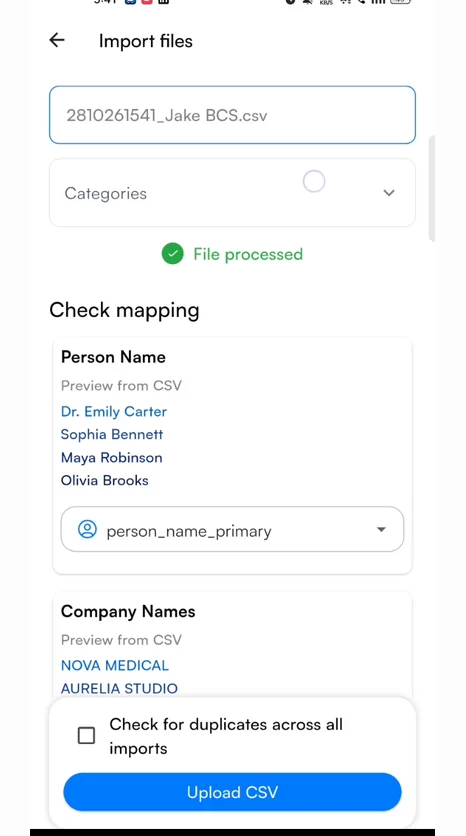
- On Import files, tap Select file and choose your CSV or VCF file. Habsy reads it and shows File processed.
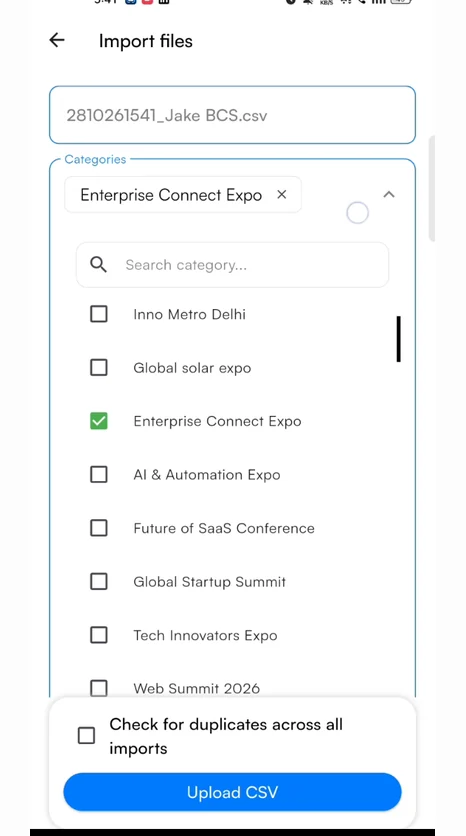
- Under Categories, pick one or more categories for the imported contacts, for example the event or the app they came from. Type in the search box to find a category quickly.
- Under Check mapping, check each column. Habsy shows the column name from your file, a preview of its first values, and the Habsy field it matched automatically. Tap the field to change it, or choose Do Not Import to skip that column.
- Tick Check for duplicates across all imports to have Habsy check the file for duplicates and flag them for you to review.
- Tap Upload CSV. Habsy shows Imported successfully, and a notification tells you how many contacts were imported.
The imported contacts appear on Home with the category you picked, ready to search, filter, enrich and follow up like any contact you scanned.
Tip
Switching from another business card app? Export your contacts from that app as a CSV or VCF file, then import the file here. Habsy matches the columns automatically, so you only need to check the mapping.
Related articles
Still need help?
Email us with your account email and a short description of the issue. We reply within 1 to 2 business days.