


Quick start: from first scan to first follow-up
The whole flow in one page: capture a contact, add context and follow up.
This is the flow most people use at an event. Each step links to the full article.
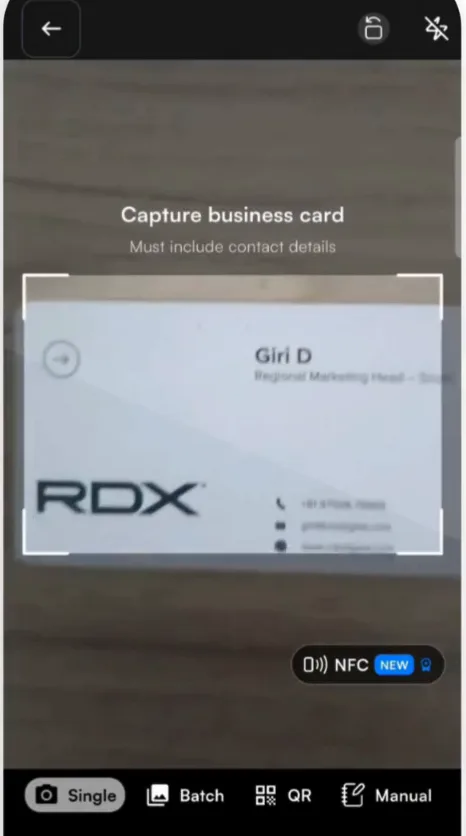
- Scan the card. Tap +, keep the camera on Single and take a photo of the card. Scan a business card
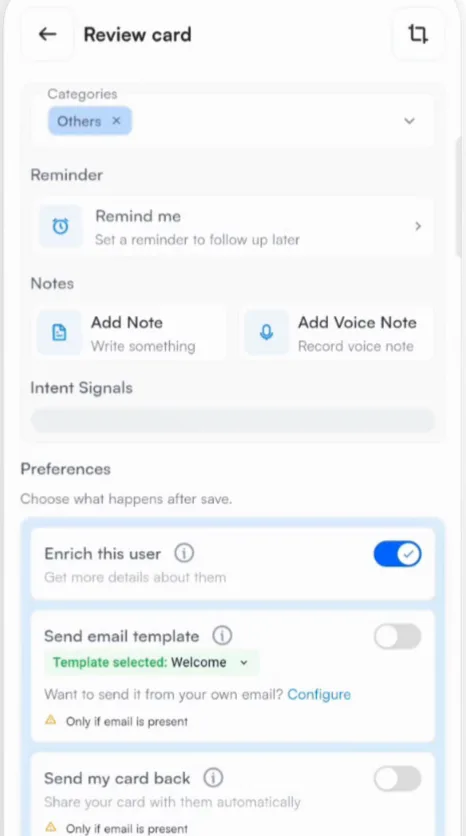
- Add context on the review screen. Pick a category, set a reminder, add a note or a voice note and answer your intent signals. Reminders, Notes, Intent signals
- Choose what happens after you save. Under Preferences, turn on enrichment, your email template, sending your card back and CRM sync. Card Preferences
- Tap Submit. Habsy turns the card into a contact and runs your preferences in the background while you move on to the next conversation.
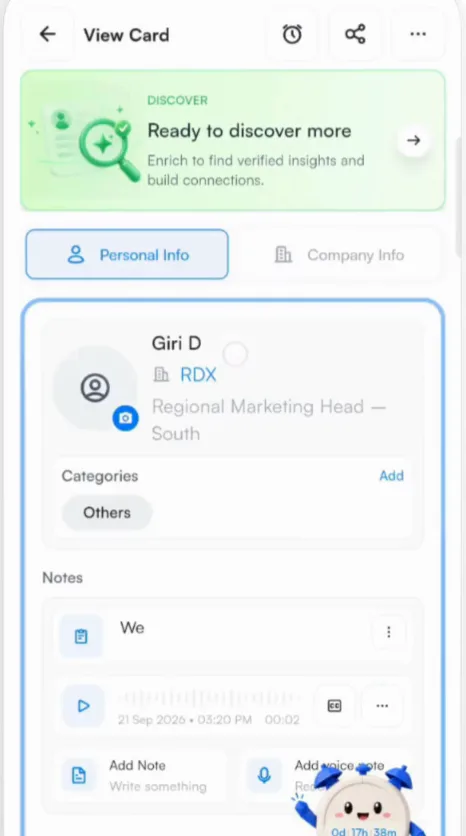
- Open the contact from Home to see the card, the details, your notes and the enrichment brief. View a contact
- Follow up. Tap the email or WhatsApp icon, choose a template or let AI write the message, and send. Follow up with one contact
Tip
Collected a stack of cards? Use batch scanning instead: set the context once and scan up to 150 cards in about 5 minutes.
Related articles
Scan a business cardCapturing contactsAutomate what happens after you save a contactFollowing upFollow up with one contactFollowing up
Still need help?
Email us with your account email and a short description of the issue. We reply within 1 to 2 business days.