


Organize contacts with categories
Group contacts by event, campaign or customer type, set a default category and filter by it.
Categories group your contacts by event, campaign, customer type or anything else that helps you find and follow them up. A contact can be in more than one category.
Create a category
- Tap the folder icon in the bottom bar, or go to Settings and tap Manage Category.
- Tap + and name the category, for example the name of the event you are going to.
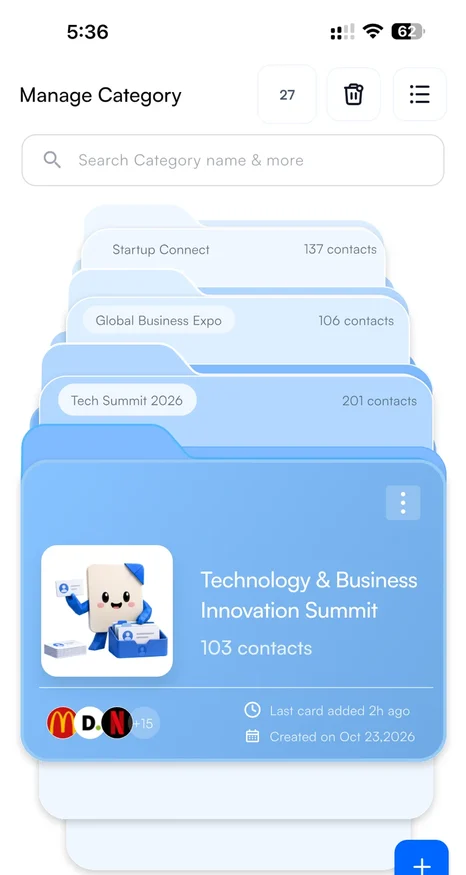
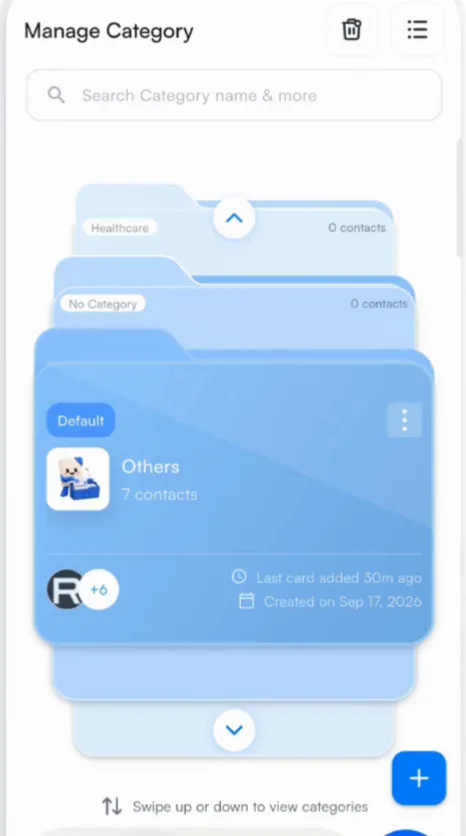
Your categories show as a stack of cards, each with its number of contacts, the last card added and the date it was created. Swipe up or down to move through them.
Add contacts to a category
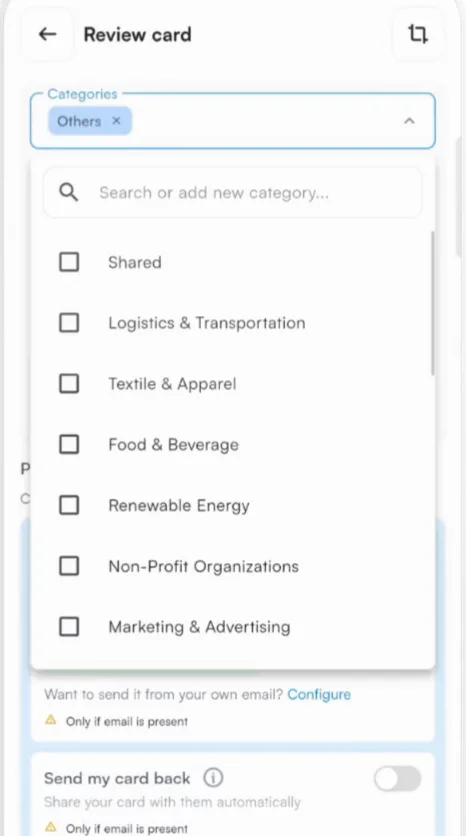
- While scanning: pick the category on the review screen, or in Lead context for a batch.
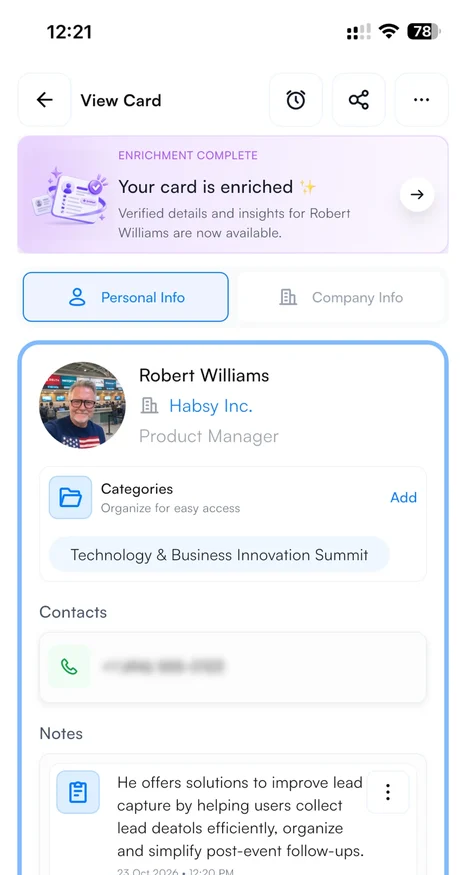
- Later: open the contact, edit it and pick the category under Lead Context.
In the category list, type to search, or type a new name to create a category on the spot.
Use a default category at an event
Set a category as your default for the days of an event. Every card you scan afterwards has that category selected automatically, and you can still change it on any card. The default category shows a Default label.
- Open the Categories tab, the folder icon in the bottom bar.
- Swipe to the category and tap the three dots on its card.
- Tap Set default.
After the event, open the same menu to remove the default, or set another category as the default instead.
Find and export by category
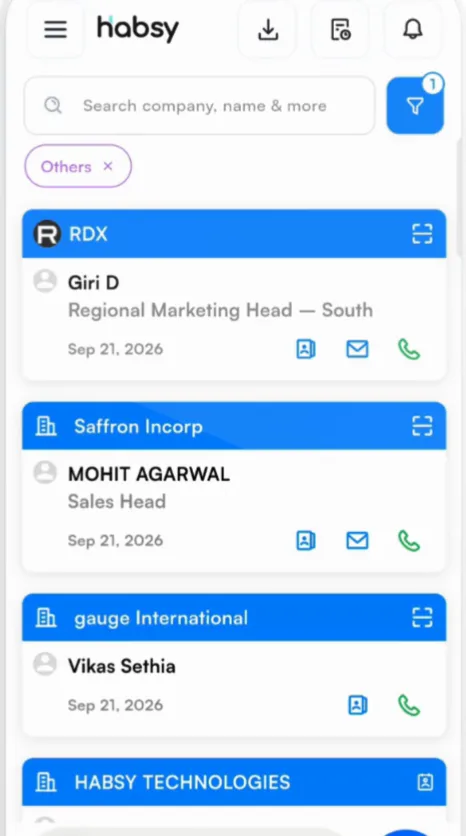
- On Home, tap the filter button and choose a category to see only those contacts.
- When you export, choose one or more categories to export only those contacts.
Related articles
Still need help?
Email us with your account email and a short description of the issue. We reply within 1 to 2 business days.