


Search and filter your contacts
Find anyone fast by name, company and more, and narrow the list with filters.
Search
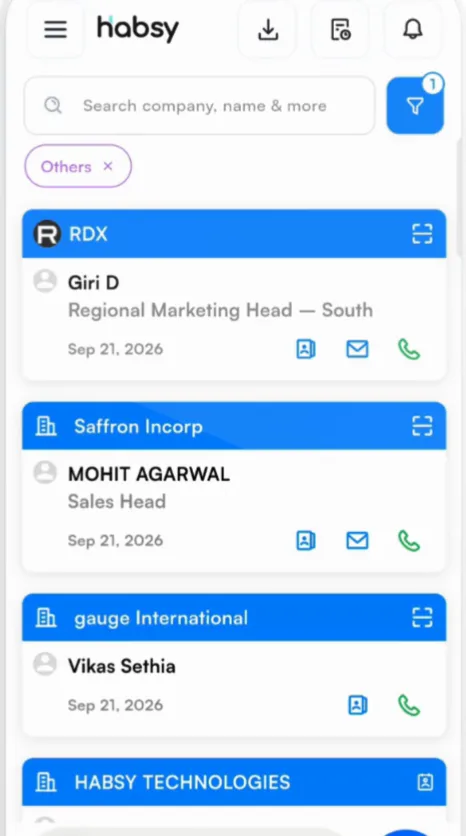
On Home, type in Search company, name & more. Results update as you type.
Filter
Tap the blue filter button next to the search bar. Filters come in two groups.
| Basic | Card categories: one or more of your categories. Card type: how the contact came in, as a scan, a contact, an import, a QR code or an enquiry from your digital card. Date range: contacts captured between two dates, such as the days of an event. |
|---|---|
| Advanced | Intent signals: contacts with a given answer, for example everyone marked Hot or everyone with a budget confirmed. |
Active filters show as chips above your contacts. Tap the x on a chip to remove it.
Tip
Filter first, then select. Narrow Home to one event's category and date range, then press and hold to select those contacts and follow up with all of them at once.
Related articles
Organize contacts with categoriesOrganizing contactsQualify contacts with intent signalsOrganizing contactsExport your contactsExport and integrations
Still need help?
Email us with your account email and a short description of the issue. We reply within 1 to 2 business days.