


Batch scan a stack of cards
Scan up to 150 cards in about 5 minutes and apply the same context to all of them.
In this article
Batch scanning keeps the camera open, so you can scan card after card without stopping. You add the context once, and Habsy applies it to every card in the batch.
Scan a batch
- Tap + and choose Batch at the bottom of the scanner.
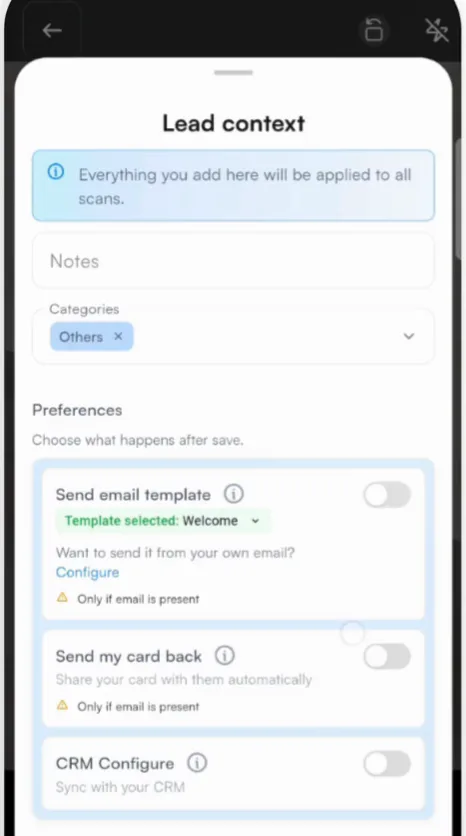
- On Lead context, add what should apply to every card: notes, a category and your preferences, such as sending your email template or syncing to your CRM. Tap Save.
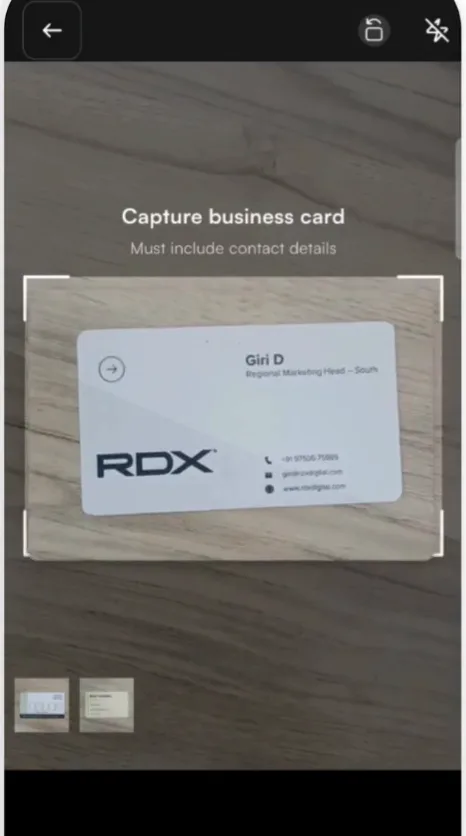
- Scan each card one by one. The counter at the bottom left shows how many cards are in the batch.
- When you are done, tap the blue tick to submit the batch.
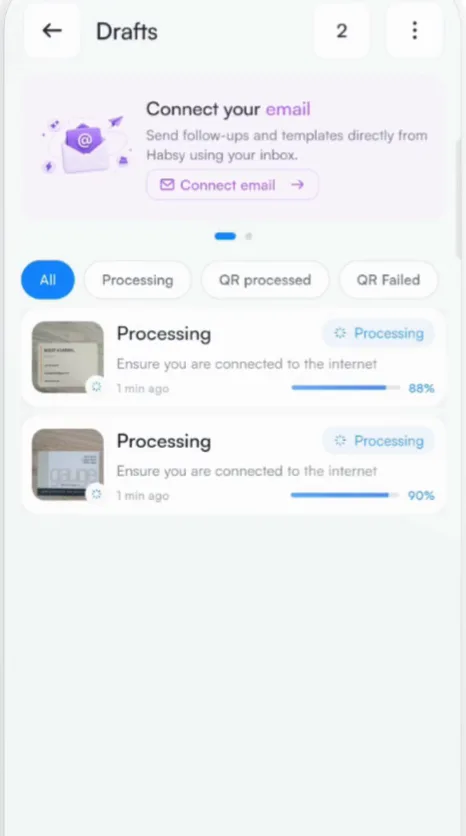
Habsy processes the cards in Drafts and adds them to Home when they are ready. Each contact keeps its original card image and the context you added for the batch.
Good to know
- A batch can hold up to 150 cards, and a full batch takes about 5 minutes to scan.
- Processing needs an internet connection. You can scan offline and the batch processes once you reconnect.
- Categories and the email, card and CRM preferences in Lead context use Habsy Plus features.
Related articles
Scan a business cardCapturing contactsDrafts: track and fix your capturesCapturing contactsOrganize contacts with categoriesOrganizing contacts
Still need help?
Email us with your account email and a short description of the issue. We reply within 1 to 2 business days.