


Share your digital card
Share by QR code, link, NFC, WhatsApp, LinkedIn or email, or put your QR on your home screen.
The person you share with opens your card in their browser. They do not need the Habsy app, and they can save your contact in one tap.
Share your card
- Open the QR tab and choose your Professional QR or Business QR.
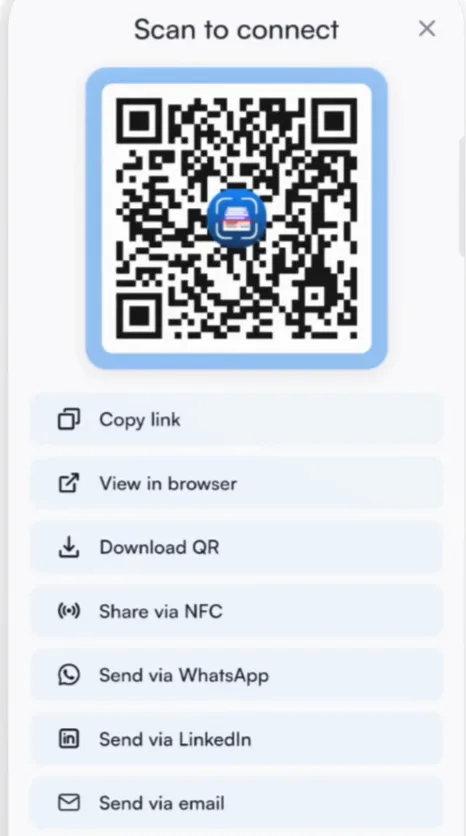
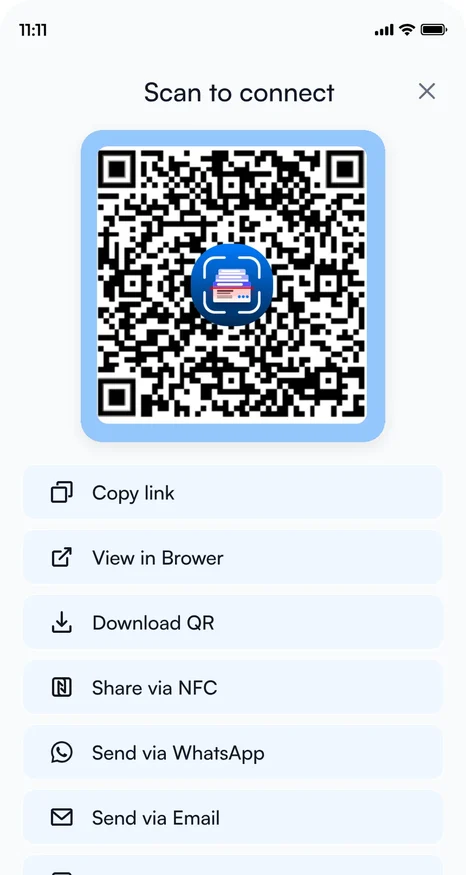
- Tap Share QR. The Scan to connect screen shows your QR code, ready to scan.
- Or pick another way to share:
| Copy link | Paste your card's link anywhere. |
|---|---|
| View in browser | Open your card the way others see it. |
| Download QR | Save the QR code as an image, to print on your booth, a brochure or a slide. |
| Share via NFC | Tap phones to share. See NFC. |
| Send via WhatsApp, LinkedIn or email | Send your card in a message. |
| More sharing options | Any other app on your phone. |
| Add QR to Home Screen | One tap away the next time someone asks for your card. |
| Live QR on Lock Screen | Show your QR without unlocking your phone. |
Tip
At a booth, print your Business QR on a stand. Visitors scan it while you are busy, and with an enquiry form their details land in Habsy as a new contact.
Related articles
Create your digital cardsDigital cards (MyQR)Capture and share with NFCCapturing contactsSend your digital card to contactsFollowing up
Still need help?
Email us with your account email and a short description of the issue. We reply within 1 to 2 business days.