


Automate what happens after you save a contact
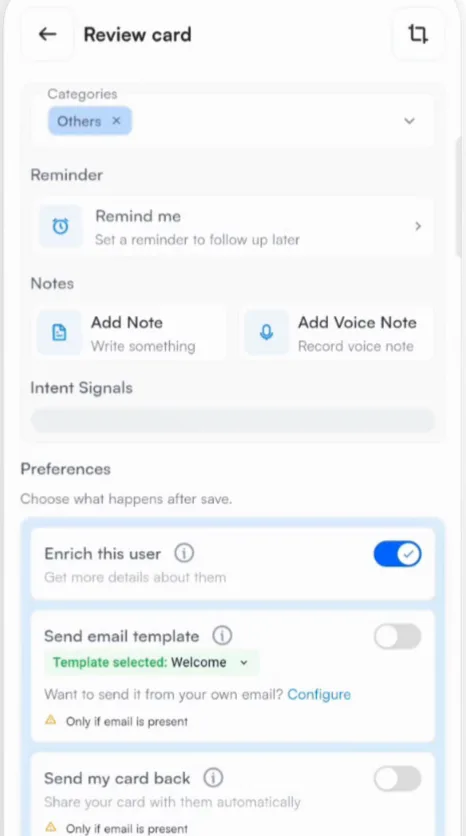
Card Preferences enrich the contact, send your template and card, and sync to your CRM in the background.
Card Preferences are switches that run in the background each time you save a contact, whether you scanned it, batch scanned it or typed it in. You keep talking to the next person while Habsy does the follow-up work.
The four preferences
| Enrich this user | Looks up the person and their company and adds an enrichment brief to the contact. See AI enrichment. |
|---|---|
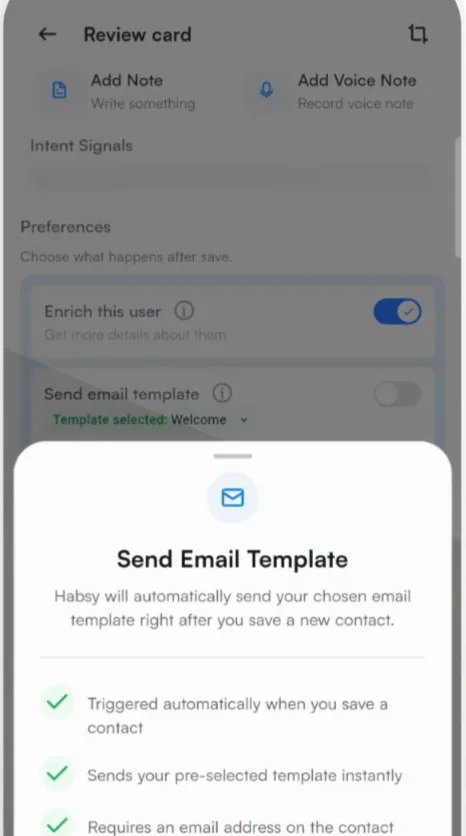
| Send email template | Sends your chosen template as soon as you save the contact. Pick the template under Template selected. Tap Configure to send it from your own email address. It only sends when the contact has an email address. |
| Send my card back | Sends your digital card to the email on the card you just scanned, so they have your details before you finish talking. It only sends when the contact has an email address. |
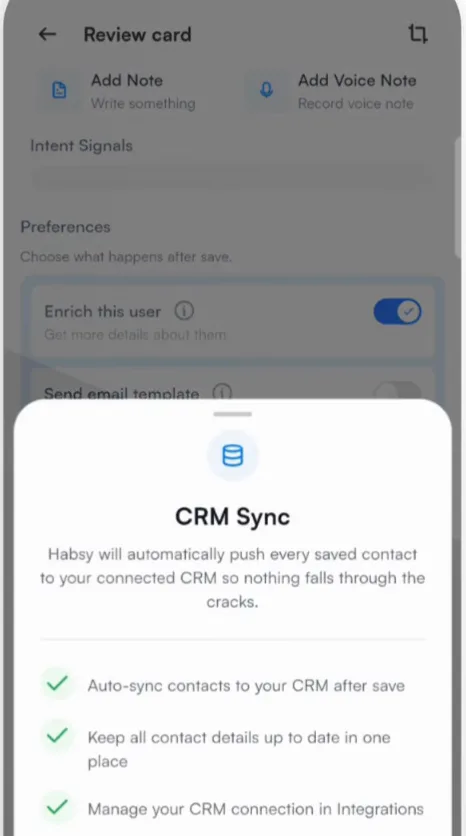
| CRM Configure | Pushes every saved contact to your connected CRM. It needs a CRM connected in Integrations. |
Set them for one contact or for every contact
- For one contact: change the switches under Preferences on the review screen or on New Contact before you save.
- For a batch: set them once in Lead context when you start a batch. They apply to every card in it.
- As your defaults: go to Settings, then Preferences, and tap Card Preferences. Every new capture starts with those switches.
Before an event
- Connect your email account, and your WhatsApp Business account if you use it. See Connect your email.
- Write your follow-up template. See Email templates.
- Turn on Send email template and Send my card back.
Your follow-up then goes out from your own account the moment you save each contact, often before the visitor has left your booth.
Related articles
Create email templatesFollowing upConnect your CRMExport and integrationsLearn more about a contact with AI enrichmentOrganizing contacts
Still need help?
Email us with your account email and a short description of the issue. We reply within 1 to 2 business days.