


Create your email signature
Build a signature with your digital card QR code and add it to Gmail, Outlook or Apple Mail.
In this article
Habsy's signature builder makes a professional email signature that includes your Professional QR, so everyone you email can save your details in one scan.
Build your signature
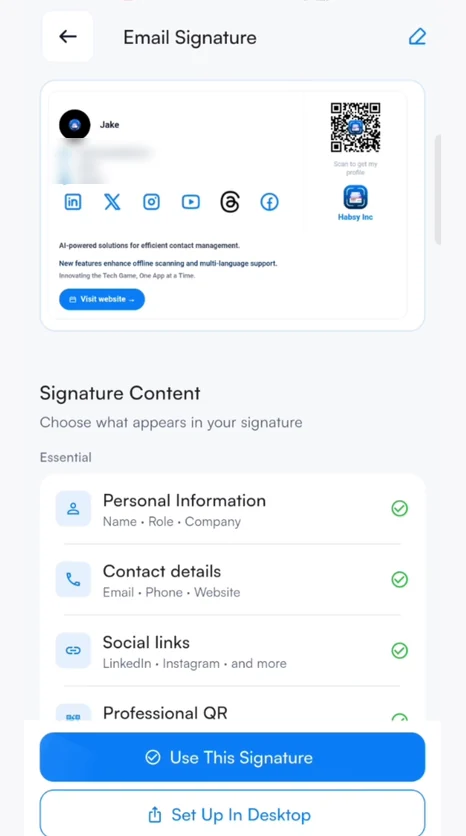
- Go to Settings and tap Email Signatures. A live preview sits at the top and updates as you go.
- Under Signature Content, check the Essential blocks. Tap any block to edit it, and use its switch to show or hide it:
- Personal Information: your name, role, company, profile photo and company logo
- Contact details: email, phone and website
- Social links: LinkedIn, Instagram, Facebook, X, YouTube and more
- Professional QR: the QR code to your digital card
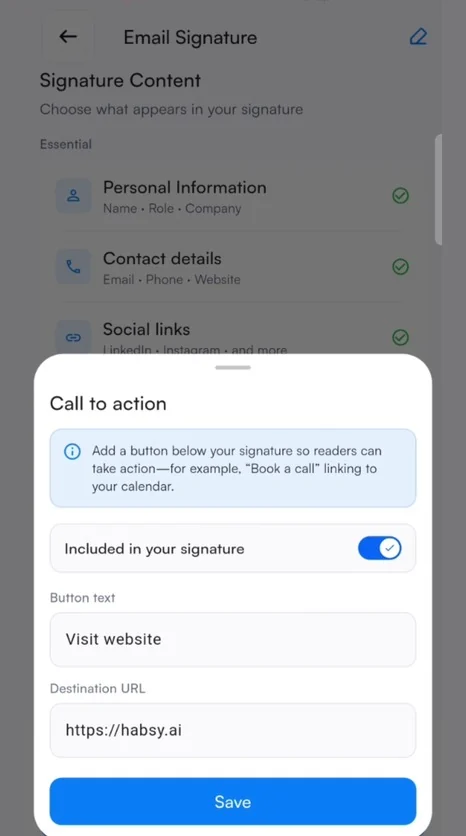
- Add any of the Enhance (Optional) blocks:
- Call to action: a button, such as Book a call, with your own text and link
- Recognition: an award or certification, who issued it and when
- Current update: one short, timely note, such as the event you are speaking at this week
- Tap the pencil at the top right to change the look. Pick a template (Scannable, Showcase, Bulletin or Spotlight) and set your brand colour for accents, links and highlights.
- Tap Use This Signature. Habsy adds it to the emails you send through Habsy.
Use it in Gmail, Outlook or Apple Mail
- In the signature builder, tap Set Up In Desktop. Habsy emails you Set up your email signature, with a preview of your signature.
- Open that email on your computer and click Open copy page.
- Copy your signature with one click on the copy page.
- Paste it into your email app, using the steps below.
| Gmail | Click the gear icon, then See all settings. On the General tab, scroll to Signature and click Create new. Name it, paste your signature into the box and choose it under Signature defaults for new emails and replies. Click Save Changes at the bottom of the page. |
|---|---|
| Outlook | Open Settings, then Mail, then Compose and reply, and find Email signature. In the newer Outlook, it is under Settings, then Account, then Signatures. Create a new signature, paste yours in, choose it as the default for new messages and replies, and save. |
| Apple Mail | On your Mac, open Mail, then Settings, then Signatures. Choose your email account, click + and paste your signature. Untick Always match my default message font so the design keeps its look. |
Tip
Set up the signature on a computer. Most phone mail apps strip the design and the QR code when you paste.
Tip
Changed your details later? Update the signature in Habsy, tap Set Up In Desktop again and paste the new version over the old one.
Related articles
Still need help?
Email us with your account email and a short description of the issue. We reply within 1 to 2 business days.