


Drafts: track and fix your captures
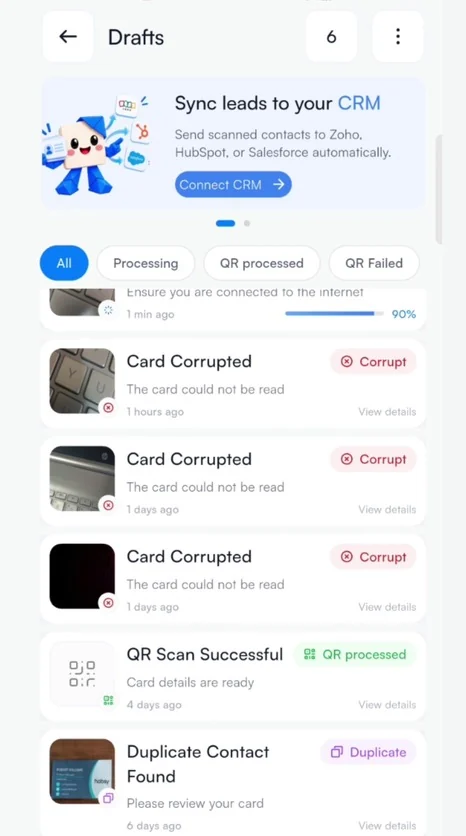
See which captures are processing, processed or failed, and correct them.
Every capture passes through Drafts while Habsy reads it. Drafts is also where you correct a capture that did not come out right.
The Drafts tabs
| All | Every capture that is still in Drafts. |
|---|---|
| Processing | Captures Habsy is still reading. Offline captures wait here until you reconnect. |
| QR processed | QR captures that are ready. |
| QR failed | QR codes Habsy could not read as a contact. |
Open Drafts
On Home, tap the Drafts icon at the top, between the download icon and the bell. The number next to the title shows how many captures are waiting.
What each status means
| Processing | Habsy is reading the capture. If you are offline, it waits here with a reminder to check your internet connection. |
|---|---|
| QR processed | The QR code was read and the contact is ready. Tap View details to check it. |
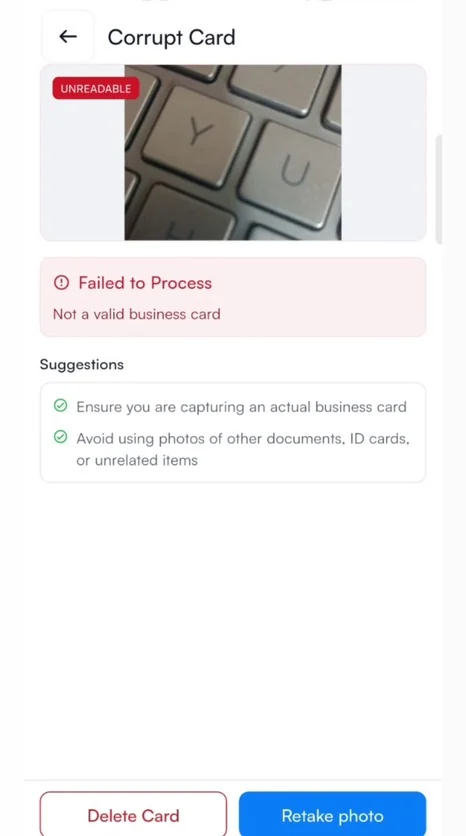
| Corrupt | Habsy could not read the photo, for example because it is blurred, dark or not a business card. |
| Duplicate | The person is already in your contacts. See When you capture the same person twice. |
Fix a card Habsy could not read
- Tap View details on the capture.
- Read the reason under Failed to Process and the Suggestions below it.
- Tap Retake photo to scan the card again, or Delete Card to remove the capture.
Related articles
Scan without internetCapturing contactsBatch scan a stack of cardsCapturing contactsEdit a contactOrganizing contacts
Still need help?
Email us with your account email and a short description of the issue. We reply within 1 to 2 business days.