


Collect enquiries with your digital card
Add a form to your card so people who scan it leave their details and are saved as contacts.
In this article
An enquiry form appears when someone opens your digital card. When they fill it in, Habsy saves them as a new contact, with their answers. It is the only way a visitor to your card is identified.
Set up the form
- Open the QR tab and tap Configure enquiry form.
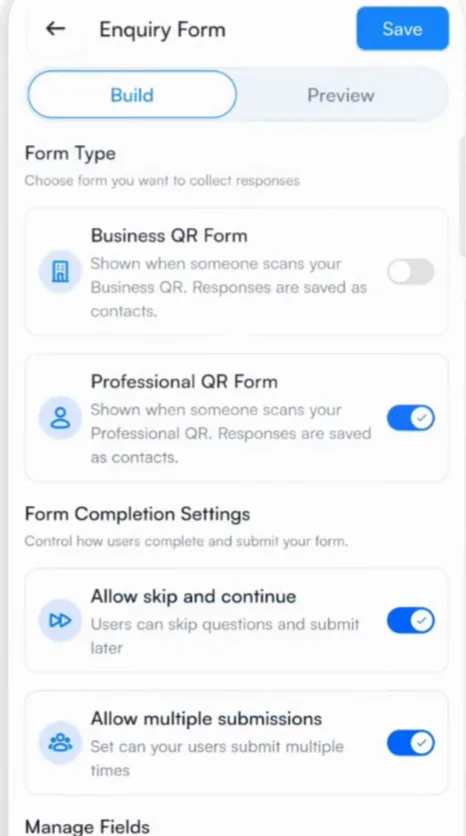
- Under Form Type, turn on the form for your Professional QR Form, your Business QR Form or both. Each card has its own form.
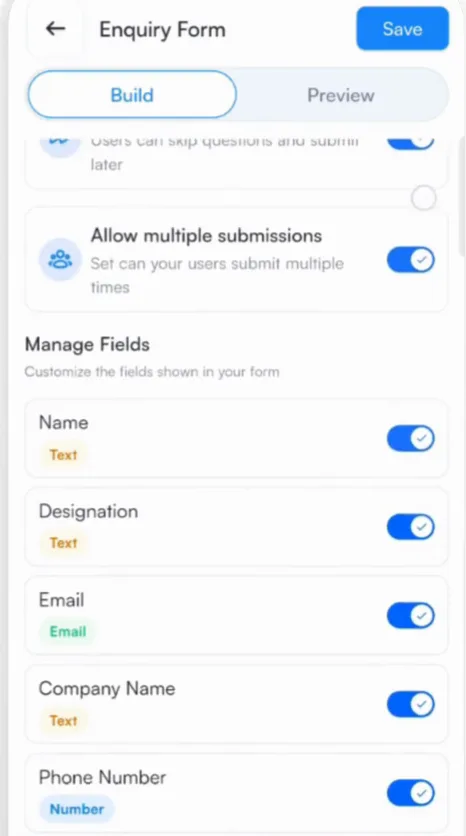
- Under Form Completion Settings, choose whether people can skip the form (Allow skip and continue) and whether they can submit it more than once (Allow multiple submissions).
- Under Manage Fields, turn fields on or off: name, designation, email, company name and phone number.
- Tap Add field using intent signals to ask one of your intent signal questions, such as what they are interested in.
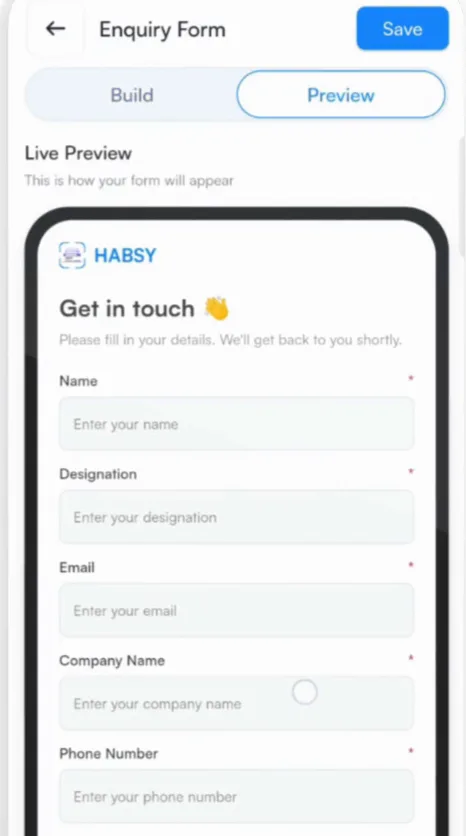
- Tap Preview to check the form, then Save.
See your enquiries
Each enquiry becomes a contact in Habsy, ready for a reminder and a follow-up. You can open your enquiries as a filtered list on Home.
Related articles
Create your digital cardsDigital cards (MyQR)Qualify contacts with intent signalsOrganizing contactsSee how your digital card performsDigital cards (MyQR)
Still need help?
Email us with your account email and a short description of the issue. We reply within 1 to 2 business days.