


Connect your CRM
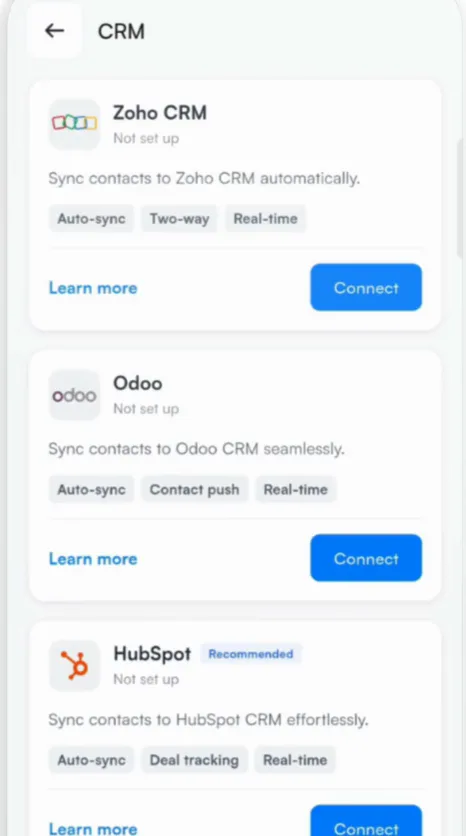
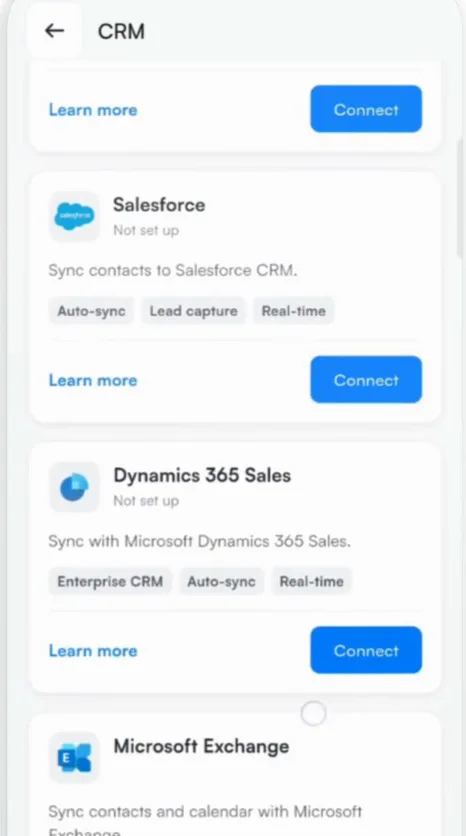
Push contacts to Salesforce, HubSpot, Zoho CRM, Dynamics 365, Odoo or Zapier.
In this article
Connect your CRM and every contact you save can go straight into it, with no CSV files and no retyping.
Connect
- Go to Settings, tap Integrations and choose CRM.
- Tap Connect next to your CRM: Zoho CRM, Odoo, HubSpot, Salesforce, Dynamics 365 Sales or Zapier.
- Sign in to your CRM and allow Habsy to add contacts.
Sync contacts automatically
Turn on CRM Configure in Card Preferences. Habsy then pushes each contact to your CRM as soon as you save it.
Contacts you already have
- In the app: when you connect your CRM, Habsy pushes your existing contacts to it in bulk.
- On Habsy Platform: when you turn on CRM auto sync, a button appears to push your existing contacts to the CRM.
Field mapping
When your team connects a CRM on Habsy Platform, Habsy maps its fields to your CRM's fields automatically and asks you to confirm the mapping before syncing. See Connect your CRM on Habsy Platform.
How sync works
- Sync is one-way, from Habsy to your CRM.
- Two-way sync is available as a custom integration.
- Use a CRM that is not listed? Zapier connects Habsy to 5,000+ apps, and custom CRM integrations are available on request.
Related articles
Automate what happens after you save a contactFollowing upExport your contactsExport and integrationsConnect Habsy to your toolsExport and integrations
Still need help?
Email us with your account email and a short description of the issue. We reply within 1 to 2 business days.