


A quick tour of the Habsy app
What each tab, button and menu does, so you always know where to find things.
In this article
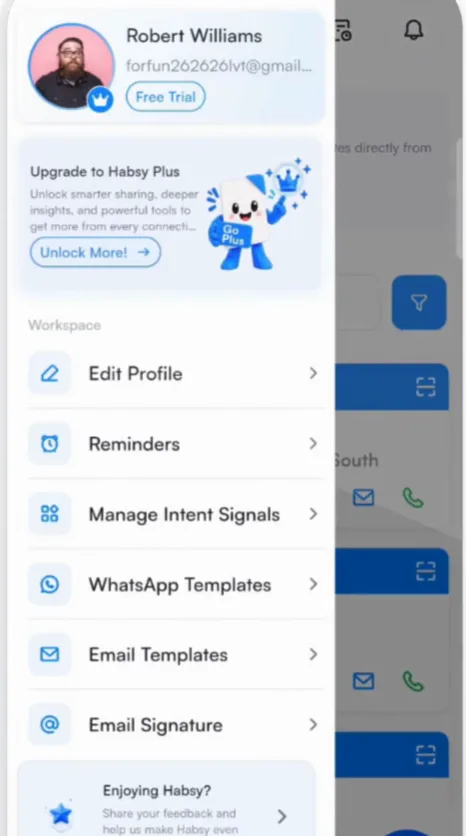
Habsy has four tabs and a capture button at the bottom of the screen, plus a menu at the top left.
The bottom bar
| Home | Every contact you have captured, newest first, with a search bar and filters at the top. Tap a contact to open it. |
|---|---|
| Categories | The folder icon. Your categories as a stack of cards, with the number of contacts in each. |
| QR | Your two digital cards, the Professional QR and the Business QR, which together are called MyQR. Share them, preview them and set up enquiry forms here. |
| Settings | The gear icon. Your account, subscription and the smart tools: categories, intent signals, templates, integrations, email signatures and reminders. |
| + | The blue capture button. Opens the scanner with four modes: Single, Batch, QR and Manual. |
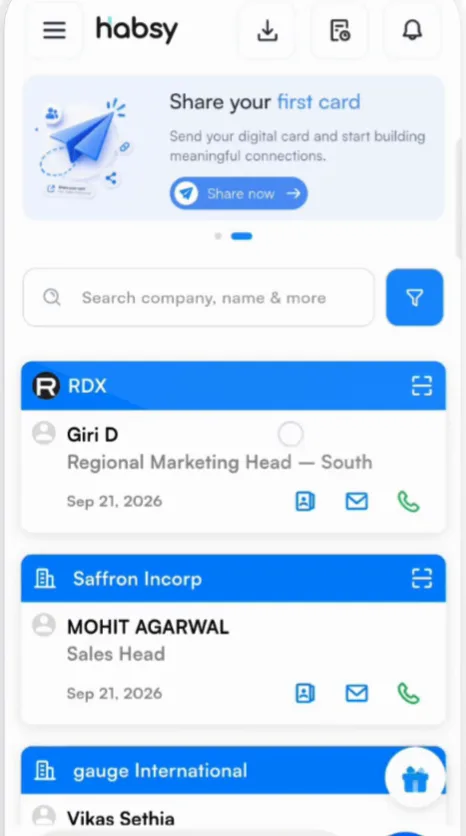
On Home
- Search by company, name and more, and tap the filter button to narrow the list.
- Contact rows show the company, the person, their job title and the date you met. The icons on each row start an email or a call, WhatsApp or text message.
- The download icon at the top opens Export contacts.
- Banners under the logo suggest your next step, such as sharing your first card or connecting your email.
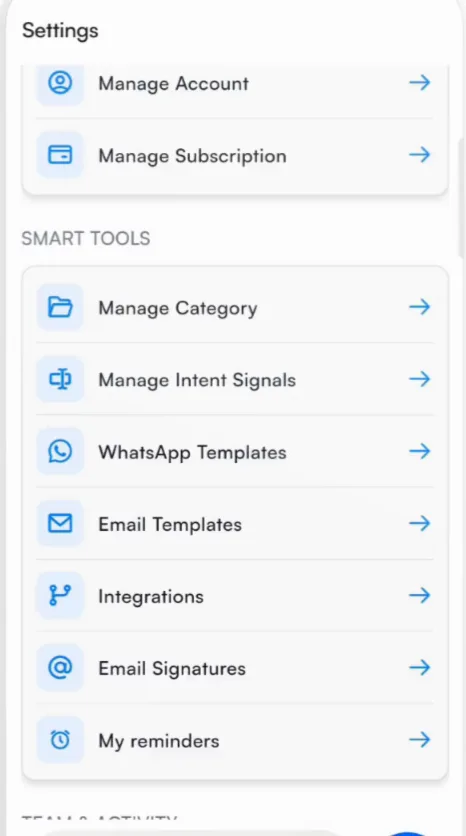
In Settings
Smart tools is where you set Habsy up the way you work:
- Manage Category and Manage Intent Signals to organize and qualify contacts
- WhatsApp Templates and Email Templates for follow-ups
- Integrations to connect your email, calendar, contacts, CRM and WhatsApp
- Email Signatures and My reminders
Your name and photo at the top of Settings open your profile. Manage Account and Manage Subscription sit under it.
Related articles
Install Habsy and sign inGetting startedSearch and filter your contactsOrganizing contactsView a contactOrganizing contacts
Still need help?
Email us with your account email and a short description of the issue. We reply within 1 to 2 business days.