


Qualify contacts with intent signals
Set up tap-to-answer questions, with AI or by hand, and record them for every contact.
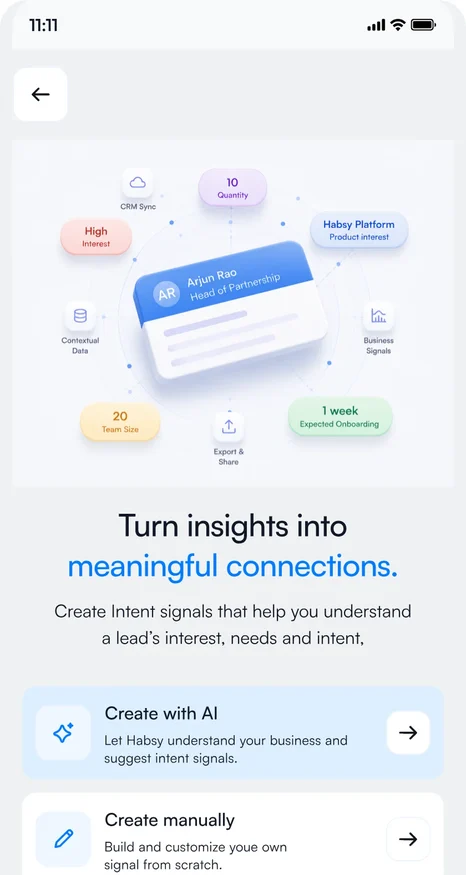
Intent signals are the questions you want answered for every contact, such as what they are interested in, their budget, how soon they plan to buy and the next step. You answer them in a tap after each scan, so every contact carries the same details and you can see who to follow up first.
Create intent signals with AI
- Go to Settings and tap Manage Intent Signals.
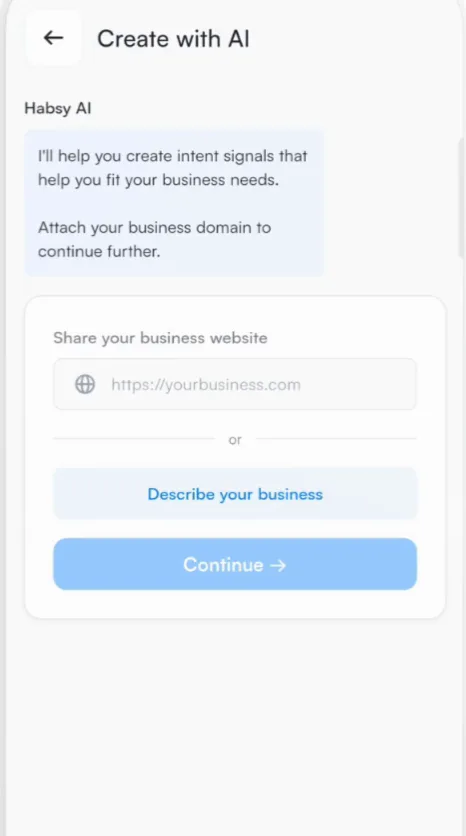
- Tap Create with AI.
- Enter your business website, or tap Describe your business and write a few lines about what you sell. Tap Continue.
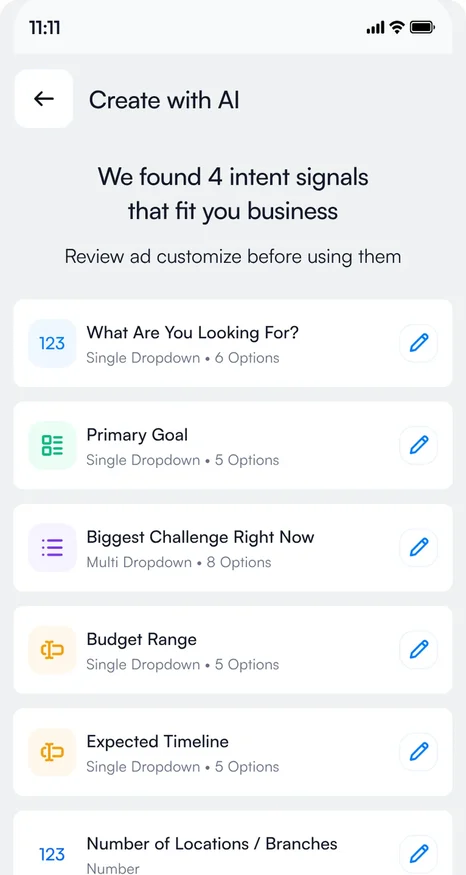
- Habsy AI analyzes your business and suggests a set of signals, each with its answer options.
- Review the suggestions, tap the pencil to change any of them, and tap Accept & Use.
Create intent signals by hand
Tap Create Manually to build a signal from scratch: give it a name, choose the field type and add the answer options. Field types include single-select dropdowns, multi-select dropdowns and numbers.
Use your own scales. If you sell event supplies, a "Quantity" signal with 100, 500, 1,000, 2,000 and 5,000 tells you each contact's buying volume at a glance.
Manage your signals
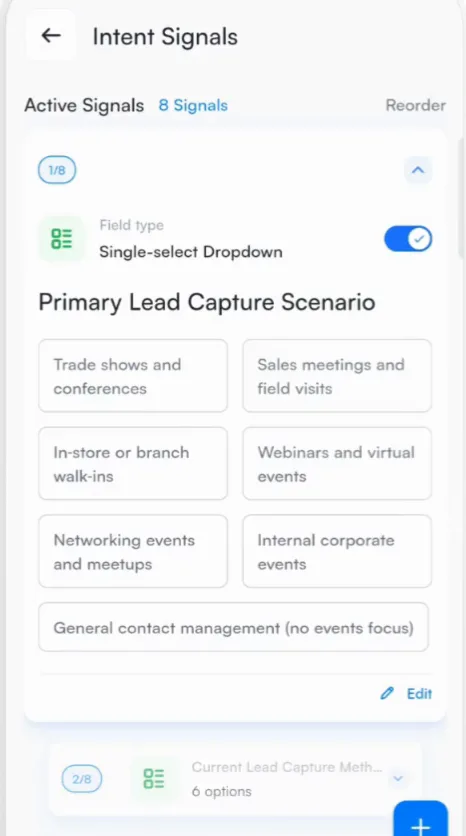
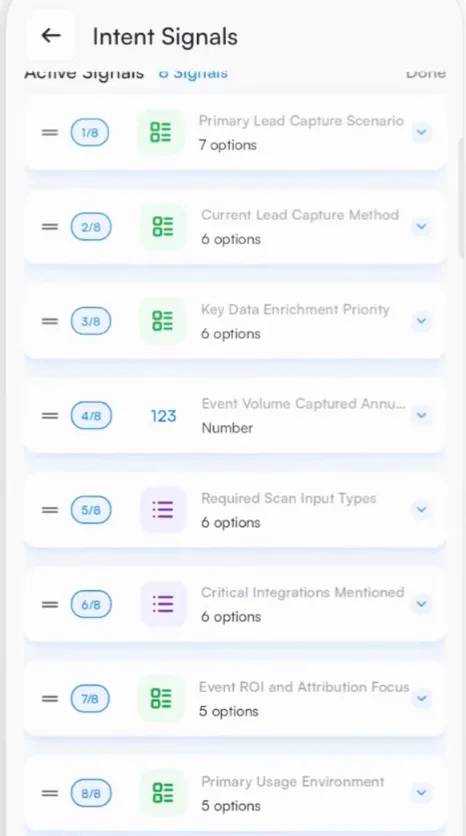
The Intent Signals list shows your active signals. Turn a signal on or off with its switch, tap Edit to change its options, and use Reorder to change the order they appear in.
Answer intent signals for a contact
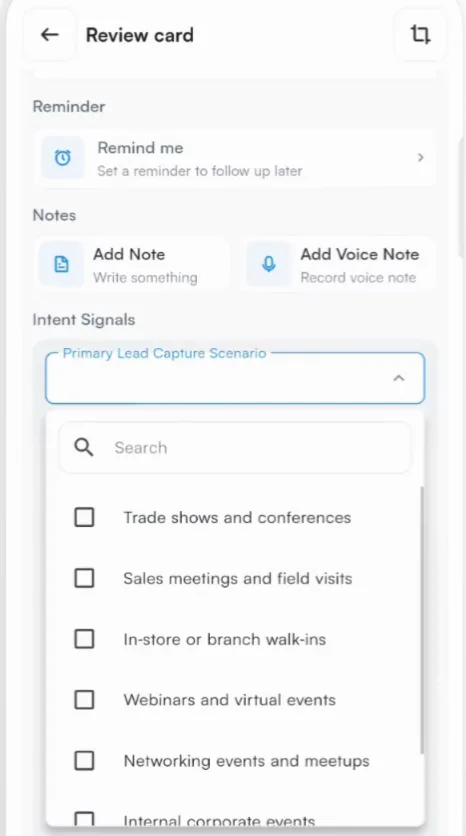
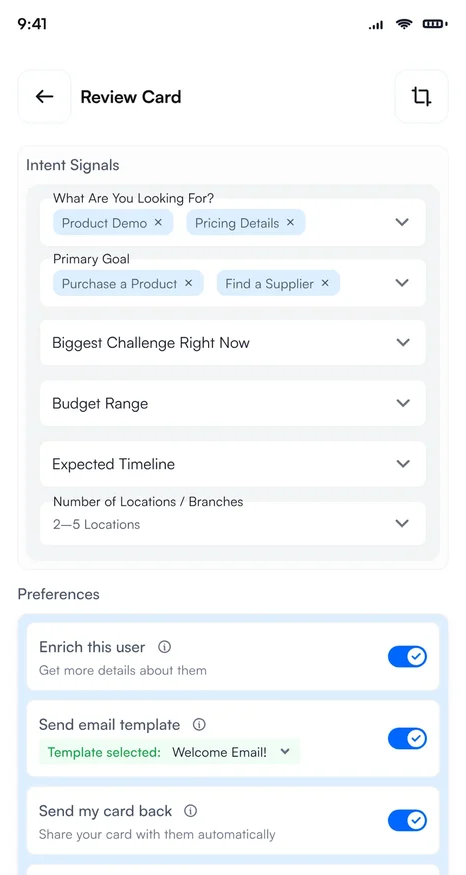
Your signals appear under Intent Signals on the review screen after each scan, on New Contact and when you edit a contact. Tap a signal and choose the answer.
Where else intent signals help
- Enquiry forms: add a signal as a question on your digital card's form. See Enquiry forms.
Related articles
Still need help?
Email us with your account email and a short description of the issue. We reply within 1 to 2 business days.